Best 144Hz Monitor 2026: Top 1080p, 1440p & 4K High Refresh Displays Ranked
Few hardware components transform your immediate sensory perception of gaming as profoundly as your monitor. You can invest thousands of dollars into a flagship graphics card and liquid-cooled processor, but if that computational horsepower outputs onto a sluggish, blurry display, your visual experience will remain fundamentally compromised. In modern PC gaming, high refresh rates are no longer an optional luxury—they are the mandatory baseline for competitive responsiveness and cinematic immersion.
While cutting-edge esports displays have pushed into extreme 360Hz and 540Hz territory, 144Hz (alongside modern 165Hz and 180Hz derivatives) remains the undisputed global sweet spot for price, performance, and hardware sustainability. A 144Hz display slashes frame times from 16.67ms down to 6.94ms, delivering silky-smooth tracking in fast-paced shooters and eliminating motion sickness during frantic camera panning. Today, with stellar Fast IPS panels retailing under $150 and jaw-dropping OLED displays dominating the high end, finding the ideal 144Hz monitor requires looking closely at panel response times, color reproduction, and variable refresh rate engineering.
Quick Answer: What Is the Best 144Hz Monitor in 2026?
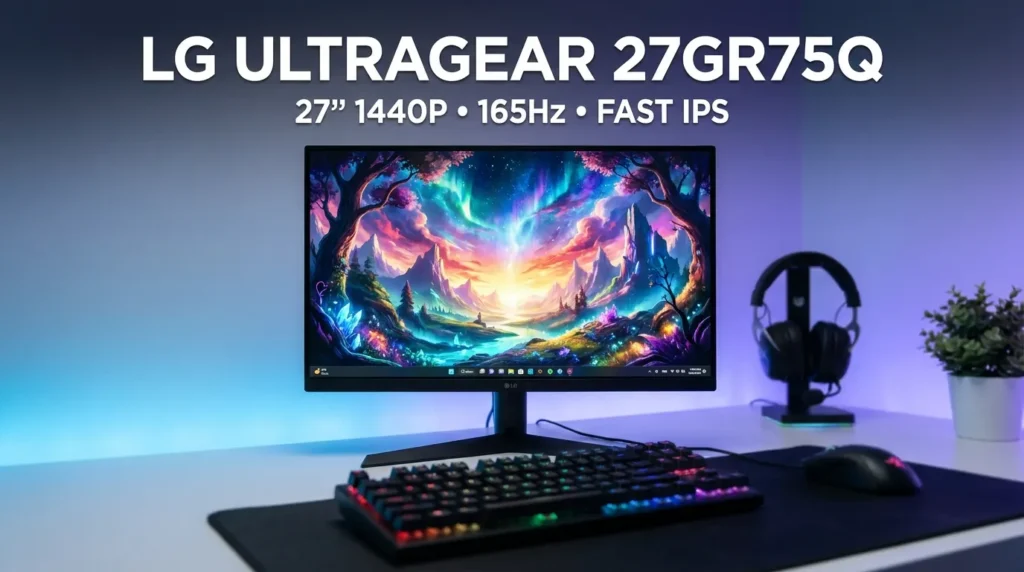
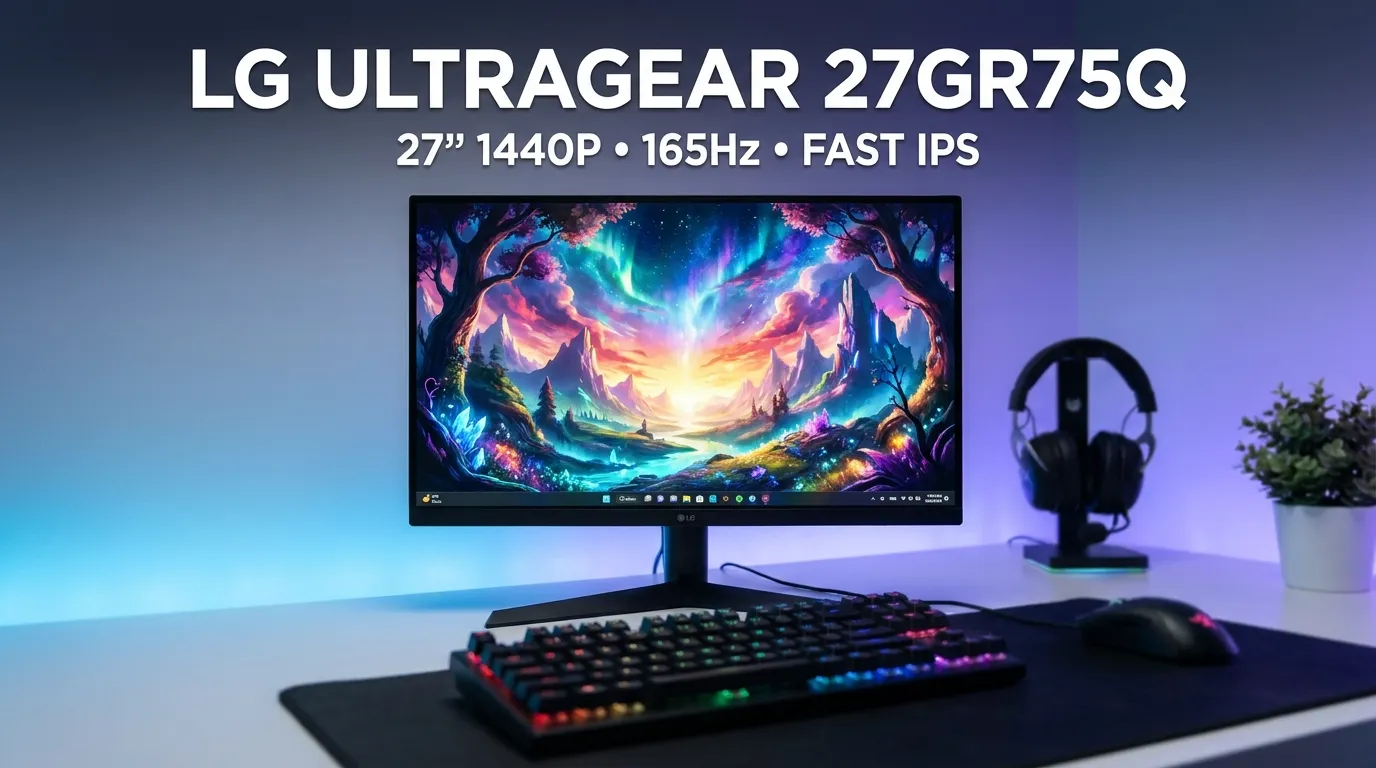
The best 144Hz monitor overall in 2026 is the LG UltraGear 27GR75Q (or 27GP850-B). Combining a gorgeous 27-inch 1440p resolution, blazing-fast Nano/Fast IPS panel with 1ms GtG response times, and official NVIDIA G-Sync and AMD FreeSync Premium support for around $250, it is the universal gold standard. For competitive 1080p esports under $140, the ASUS TUF Gaming VG249Q1A is unbeatable, while the Dell Alienware AW3423DWF QD-OLED represents the pinnacle of high-refresh enthusiast immersion. For 4K 144Hz gaming, the Samsung Odyssey G7 (G70A) is the standout choice for RTX 4080/4090 owners.
Key Takeaways
- The 1440p 27-Inch Sweet Spot: Pairing a 144Hz refresh rate with a 27-inch 1440p (QHD) resolution delivers the ideal balance of pixel density (~109 PPI) and GPU performance sustainability.
- Demand True GtG Response Times: Beware of marketing claims boasting “1ms MPRT,” which rely on brightness-reducing backlight strobing. Demand under 3ms true Gray-to-Gray (GtG) response times to prevent dark-level ghosting.
- Panel Technology Matters: Fast IPS is the universal recommendation for gaming and color-accurate work. QD-OLED offers instantaneous 0.03ms response and infinite contrast, while budget VA panels often suffer from dark-level smearing.
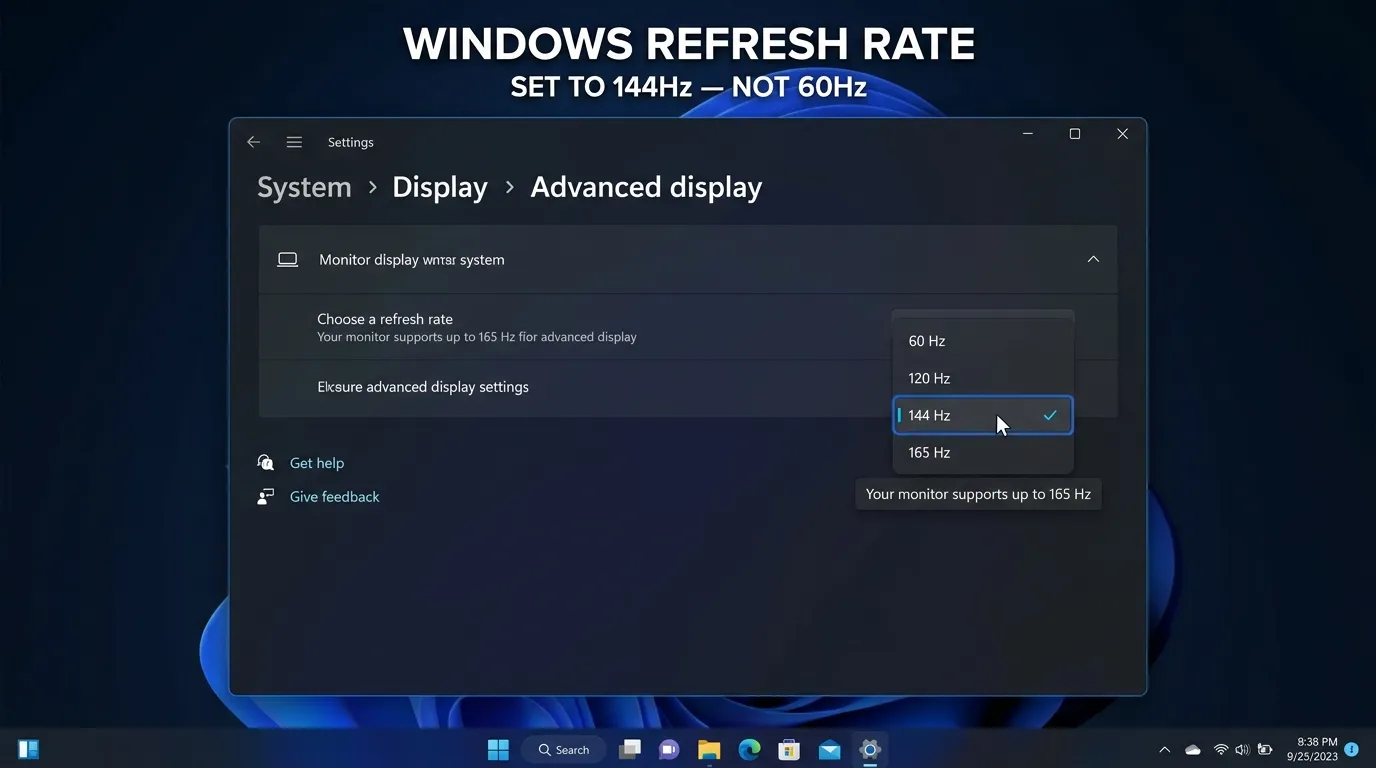
- The Mandatory Windows Setting: Windows defaults newly connected high-refresh displays to 60Hz. You must manually enable 144Hz in Windows Advanced Display settings.
- G-Sync / FreeSync Synchronization: Ensure your monitor features certified Variable Refresh Rate (VRR) to eliminate screen tearing without introducing V-Sync latency.
Table of Contents
- 1. Best 144Hz Monitor Master Comparison Matrix
- 2. In-Depth Reviews: The Top Ranked 144Hz Displays
- 3. The Technical Guide: GtG Response, MPRT & Panel Types
- 4. Resolution & Screen Size Pairing Guide (1080p vs. 1440p vs. 4K)
- 5. Essential Setup Tips & Best Practices
- 6. Common Mistakes to Avoid When Buying a 144Hz Monitor
- 7. Technical Troubleshooting Guide (G-Sync Flickering & Ghosting)
- 8. Frequently Asked Questions (FAQs)
- 9. Official Sources & Verification
1. Best 144Hz Monitor Master Comparison Matrix
To help you evaluate the top 144Hz and high-refresh gaming displays across resolutions, panel technologies, and pricing tiers, review our comprehensive hardware specification breakdown:
| Monitor Model | Screen Size & Resolution | Refresh Rate | Panel Technology | True Response Time | Variable Refresh Rate | Approx. Retail Price |
|---|---|---|---|---|---|---|
| LG UltraGear 27GR75Q | 27-inch QHD (2560 × 1440) | 165Hz (Native 144Hz+) | Fast IPS (sRGB 99%) | 1ms GtG (Fast Overdrive) | G-Sync Compatible & FreeSync Premium | $229 – $269 |
| ASUS TUF Gaming VG249Q1A | 23.8-inch FHD (1920 × 1080) | 165Hz (Overclocked 144Hz) | Fast IPS | 1ms MPRT / ~3ms GtG | FreeSync Premium & G-Sync Compatible | $119 – $139 |
| Alienware AW3423DWF | 34-inch Ultrawide (3440 × 1440) | 165Hz Native | Quantum Dot OLED (QD-OLED) | 0.03ms true GtG | AMD FreeSync Premium Pro & VESA AdaptiveSync | $749 – $899 |
| Gigabyte M27Q | 27-inch QHD (2560 × 1440) | 170Hz (Overclocked) | Super Speed IPS (SS-IPS) | ~3ms GtG | FreeSync Premium & G-Sync Compatible | $249 – $279 |
| BenQ ZOWIE XL2411K | 24-inch FHD (1920 × 1080) | 144Hz Native | TN Film (Esports Tuned) | 1ms GtG (DyAc Strobing) | DyAc Technology (Esports Fixed) | $189 – $219 |
| Samsung Odyssey G7 (G70A) (Velogamer Pick) | 28-inch 4K UHD (3840 × 2160) | 144Hz Native | IPS | 1ms GtG | FreeSync Premium Pro & G-Sync Compatible | $499 – $599 |
| ASUS ROG Swift PG279QM (Velogamer Pick) | 27-inch QHD (2560 × 1440) | 240Hz Native | Fast IPS | 1ms GtG | G-Sync & FreeSync Premium | $549 – $649 |
2. In-Depth Reviews: The Top Ranked 144Hz Displays
LG UltraGear 27GR75Q / 27GP850-B: The Undisputed 1440p Sweet-Spot King
If you have around $250 to spend on a gaming monitor, the LG UltraGear 27GR75Q (and its predecessor, the legendary 27GP850-B) is universally regarded by hardware testing labs as the gold standard of modern PC gaming displays. Built on LG’s proprietary Fast IPS panel technology, it delivers breathtaking color saturation across 99% of the sRGB color spectrum without compromising pixel response times.
Running natively at 165Hz (easily surpassing the 144Hz baseline), pixel transitions are so fast and cleanly tuned that motion smearing and dark-level ghosting are virtually imperceptible. Furthermore, LG’s aggressive overdrive tuning avoids the ugly “coronas” (bright white halo rings) that plague cheap monitors. With a fully ergonomic stand supporting height, tilt, and 90-degree portrait pivot adjustments, it is the quintessential all-rounder for competitive shooters and sprawling open-world RPGs alike.
ASUS TUF Gaming VG249Q1A: Best Budget 1080p Esports Monitor
For budget-conscious gamers and competitive esports competitors playing on modest graphics hardware, spending over $200 on a monitor is unnecessary. The ASUS TUF Gaming VG249Q1A delivers sensational high-refresh performance for as little as $120 to $139.
Featuring a 23.8-inch 1080p Fast IPS panel operating at an overclocked 165Hz refresh rate, it matches human peripheral vision perfectly for tactical shooters like Valorant and Counter-Strike 2. ASUS includes its patented ELMB (Extreme Low Motion Blur) backlight strobing technology, providing CRT-like motion clarity during rapid 180-degree mouse swipes. It supports both AMD FreeSync Premium and NVIDIA G-Sync compatibility, eliminating screen tearing without breaking the bank.
Alienware AW3423DWF: The Ultimate QD-OLED Immersion Masterpiece
If you refuse to accept any compromises in visual fidelity and possess an enthusiast graphics card from our Best Gaming PC Under $2000 Guide, the Alienware AW3423DWF is arguably the greatest gaming display ever engineered. Utilizing Samsung’s revolutionary Quantum Dot OLED (QD-OLED) panel, every single pixel on its 34-inch curved ultrawide (3440 × 1440) canvas generates its own light.
- Instantaneous 0.03ms Response Times: Because OLED pixels emit light directly rather than waiting for liquid crystals to physically twist, pixel transitions take just 0.03 milliseconds—making 165Hz on an OLED look as sharp and clear as 360Hz on a traditional LCD panel!
- Infinite Contrast & True HDR: Achieves true 0.0000-nit absolute blacks with infinite contrast ratios and 1,000 nits peak HDR brightness. In dark games like Alan Wake 2 and Dead Space, the visual realism is staggering.
- 3-Year OLED Burn-In Warranty: Dell explicitly includes full coverage for potential OLED burn-in, giving you absolute peace of mind.
Gigabyte M27Q: Best Hybrid Gaming & Workstation Display with KVM
If you use your desk setup for both a high-powered gaming PC and a work-from-home office laptop, the Gigabyte M27Q is an engineering marvel. It features an integrated hardware KVM switch and a high-speed USB-C display input.
By pressing a single physical button on the back of the monitor, your mouse, keyboard, and screen instantly switch between your gaming desktop and your connected laptop with zero cable swapping. Beyond its productivity genius, its Super Speed IPS panel runs at a blistering 170Hz at 1440p with wide 92% DCI-P3 color gamut coverage, making it equally phenomenal for color grading, coding, and fast-paced competitive gaming.
BenQ ZOWIE XL2411K: The Pure Esports Motion Clarity Weapon with DyAc
While TN panels have fallen out of favor for cinematic gaming due to narrower viewing angles, the BenQ ZOWIE XL2411K remains an esports legend. It is engineered with one laser-focused mission: winning tactical first-person shooters.
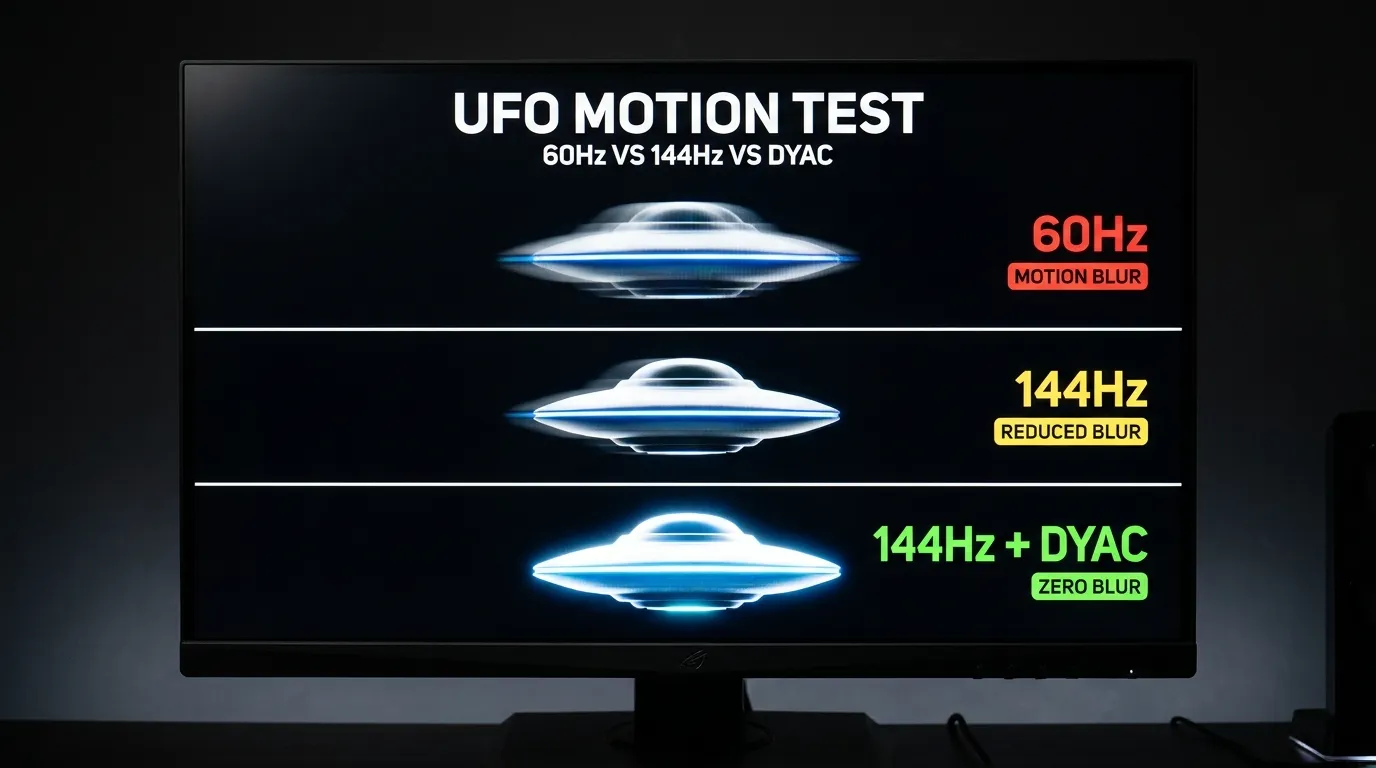
Featuring BenQ’s proprietary DyAc (Dynamic Accuracy) backlight strobing technology, the XL2411K completely eliminates the visual recoil blur caused by automatic weapons in CS2 and Rainbow Six Siege. When spraying an AK-47, the crosshair and bullet impacts remain pin-sharp, allowing professional players to control spray patterns with robotic precision.
Samsung Odyssey G7 (G70A) — Best 4K 144Hz Monitor (Velogamer Pick)
For owners of flagship RTX 4080/4090 GPUs, the 28-inch Samsung Odyssey G7 (G70A) is the definitive 4K 144Hz option. Its IPS panel delivers razor-sharp 4K clarity at ~138 PPI, supports FreeSync Premium Pro and G-Sync Compatible VRR, and includes HDMI 2.1 for full 4K/120Hz console compatibility. At around $499–$599 during sales, it delivers genuine next-generation visual fidelity for a fraction of flagship 4K monitor prices.
ASUS ROG Swift PG279QM — Premium 240Hz Esports Pick (Velogamer Pick)
If you’re a serious competitive player who wants to step beyond 144Hz, the PG279QM’s 240Hz Fast IPS panel delivers the smoothest motion clarity in the 1440p class. Featuring 1ms GtG response, native G-Sync hardware, and 99% DCI-P3 coverage, it is the ultimate premium upgrade for esports purists who also want excellent color accuracy for content creation. Expect to pay a premium $549–$649 during sales.
3. The Technical Guide: GtG Response, MPRT & Panel Types
To avoid deceptive marketing traps, you must understand the difference between pixel response metrics and panel technologies:
1. Gray-to-Gray (GtG) vs. MPRT Marketing
- Gray-to-Gray (GtG): The physical time it takes for an individual liquid crystal pixel to shift from one color shade to another. A true GtG time under 3 milliseconds is mandatory to prevent ghosting (faint trails following moving objects).
- MPRT (Moving Picture Response Time): Measures the duration a pixel is visibly illuminated before your eyes. Manufacturers achieve “1ms MPRT” by strobing the backlight on and off. However, strobing severely dims screen brightness, causes flicker, and disables G-Sync/FreeSync on most budget panels. Always judge a monitor by its GtG response time, not MPRT.
2. The Panel Technology Showdown
| Panel Type | Pixel Response Time | Color Vibrancy & Angles | Contrast Ratio | VeloGamer Verdict |
|---|---|---|---|---|
| Fast IPS | Fast (1ms – 3ms true GtG) | Superb colors, 178° angles | Moderate (1000:1) | The Universal Choice (Recommended for 85% of gamers). |
| QD-OLED / WOLED | Instant (0.03ms true GtG) | Flawless colors, perfect angles | Infinite (∞:1 true black) | The Ultimate Enthusiast Experience for dark rooms. |
| VA (Vertical Alignment) | Slow (Dark smearing issues) | Good colors, narrower angles | High (3000:1 – 4000:1) | Good for deep contrast, but budget models suffer from black smearing. |
| TN (Twisted Nematic) | Very Fast (1ms GtG) | Poor colors, washed-out angles | Low (800:1) | Strictly for hardcore esports purists with DyAc strobing. |
3. HDR Certification Explained (Velogamer Pick)
HDR marketing is notoriously misleading. Understanding VESA’s DisplayHDR certification tiers helps you separate gimmicks from genuine HDR experiences:
- DisplayHDR 400: Entry-level. Minimal HDR improvement over SDR. Often not worth paying extra for.
- DisplayHDR 600: Moderate local dimming and 600 nits peak brightness. Suitable for casual HDR viewing.
- DisplayHDR True Black 400/500: OLED-specific tiers. Infinite contrast without bright HDR highlights. Excellent for dark-room cinematic gaming.
- DisplayHDR 1000/1400: Enthusiast-grade. High peak brightness with full-array local dimming. Genuine reference-quality HDR.
4. Resolution & Screen Size Pairing Guide (1080p vs. 1440p vs. 4K)
Matching your refresh rate to an appropriate screen resolution and physical size is vital for visual clarity. As detailed in our 1080p vs 1440p vs 4K Gaming Resolution Comparison, pixel density dictates how sharp an image appears to the human eye:
- 24 Inches at 1080p (Full HD): Delivers roughly 92 PPI. Highly recommended for budget esports setups and small desks. Never buy a 27-inch or 32-inch 1080p monitor, as the stretched pixels create an ugly, blurry mess.
- 27 Inches at 1440p (Quad HD): Delivers roughly 109 PPI. The undisputed gold standard for modern PC gaming. Sharp text, gorgeous environmental clarity, and easily driven by mid-range graphics cards.
- 32 Inches at 4K (Ultra HD): Delivers roughly 138 PPI. Breathtaking photorealism, but driving 144Hz at native 4K demands flagship graphics cards like the RTX 4080 Super or RTX 4090.
Ultrawide 1440p (3440×1440) vs 16:9 1440p (Velogamer Pick)
- 16:9 1440p (2560×1440): Standard widescreen. Best compatibility with streaming, competitive esports, and older games. Lower GPU load, more affordable.
- 21:9 Ultrawide 1440p (3440×1440): Immersive cinematic experience, superior multitasking for productivity (two side-by-side windows comfortably). Approximately 30% more pixels than 16:9 1440p — expect 20%–30% lower framerates at the same GPU tier.
- Verdict: Choose ultrawide if immersion and productivity matter more than raw competitive FPS. Choose 16:9 for pure esports and widest compatibility.
5. Essential Setup Tips & Best Practices
To ensure you actually experience 144Hz and optimal latency, complete these mandatory configuration steps:
The Golden Driver VRR Rule (NVIDIA G-Sync / AMD FreeSync)
To eliminate screen tearing while ensuring zero input lag, configure your GPU driver control panel as follows:
- Enable G-Sync / FreeSync in the driver control panel.
- Set Vertical Sync (V-Sync) to ON globally in the driver control panel (do NOT enable V-Sync inside individual game menus).
- Set a Max Frame Rate Cap at 141 FPS (3 FPS below your 144Hz ceiling). This keeps framerates permanently locked inside the Variable Refresh Rate window, completely preventing V-Sync input lag spikes while eliminating tearing.
Use DisplayPort Whenever Possible
DisplayPort (DP 1.4) natively carries high-bandwidth 144Hz+ video signals and guarantees full Variable Refresh Rate compatibility. If you must use HDMI, ensure your monitor and GPU both feature HDMI 2.0 or HDMI 2.1 ports and use a certified High-Speed cable.
Tune Monitor Overdrive to “Normal” or “Fast”
Navigate your monitor’s physical OSD joystick menu and find the “Overdrive” or “Response Time” setting. Set it to Fast or Normal. Avoid setting it to “Extreme” or “Fastest”—the highest overdrive setting applies excessive voltage to liquid crystals, resulting in severe “inverse ghosting” (bright white corona trails following moving objects).
Basic Monitor Calibration (Velogamer Pick)
- Brightness: 120 nits for dark-room gaming, 200 nits for daylight. Don’t max it out — it destroys contrast.
- Contrast: Leave at 50–70% depending on panel. Higher values cause white clipping.
- Color Temperature: Warm (6500K) for accuracy; Cool for perceived brightness at the cost of color accuracy.
- Gamma: Standard 2.2 for most content. Never use “Monitor Default” unless verified by hardware calibration.
6. Common Mistakes to Avoid When Buying a 144Hz Monitor
- Leaving Windows at 60Hz: Millions of gamers buy a 144Hz monitor, plug it in, and unknowingly play at 60Hz for months because Windows defaults all newly connected displays to 60Hz. Open Settings > System > Display > Advanced Display and select 144Hz immediately.
- Buying Budget Curved VA Panels for Fast Shooters: Many inexpensive $130 curved gaming monitors use budget VA panels with slow dark-pixel transition times. In dark games or competitive shooters, black text or dark silhouettes smear into a muddy streak across your screen (known as “black smearing”). Stick to Fast IPS for fast-paced competitive action.
- Plugging the Display Cable into the Motherboard: Always connect your DisplayPort or HDMI cable directly into the horizontal ports on your dedicated graphics card lower down on the PC chassis, never into the motherboard video ports.
- Cheap HDMI 1.4 Cable Trap (Velogamer Pick): HDMI 1.4 maxes out at 1080p 144Hz, or 1440p 60Hz. If you’re trying to hit 144Hz at 1440p over HDMI, you need HDMI 2.0 (or preferably 2.1) — verify cable certification before buying.
- Not Checking VESA Mount Compatibility (Velogamer Pick): If you plan to wall-mount or use a monitor arm, verify the VESA pattern (usually 100×100mm or 75×75mm). Some budget monitors ship without any VESA compatibility, locking you to the included stand.
7. Technical Troubleshooting Guide (G-Sync Flickering & Ghosting)
If your high-refresh display encounters visual glitches, use these proven fixes:
| Symptom | Probable Root Cause | Proven Diagnostic Fix |
|---|---|---|
| Screen Brightness Flickering in Loading Screens (VRR Flicker) | Framerate dropping below the monitor’s minimum VRR threshold (usually 48Hz) in static menus. | In NVIDIA Control Panel / AMD Software, set G-Sync to “Fullscreen Only” rather than “Windowed and Fullscreen.” Ensure Low Framerate Compensation (LFC) is supported. |
| Bright Glowing Halos Trailing Moving Objects (Overshoot) | Monitor Overdrive setting is pushed too aggressively (Extreme / Fastest mode). | Open monitor OSD menu with the physical joystick. Lower the Response Time / Overdrive setting from “Extreme” to “Fast” or “Normal.” |
| Screen Randomly Goes Black for 2 Seconds and Returns | Defective, unshielded, or bandwidth-constrained DisplayPort cable. | Replace the generic cable with a VESA-certified DisplayPort 1.4 or HDMI 2.1 cable (such as Cable Matters or Club 3D). Ensure Pin 20 is not carrying stray power. |
| 144Hz Not Available in Windows Display Settings (Velogamer Pick) | Wrong cable spec (HDMI 1.4 or low-bandwidth DP), GPU port limitation, or outdated graphics driver. | Verify the cable is DP 1.4 or HDMI 2.0+. Use the port on your dedicated GPU (not the motherboard). Update GPU drivers to the latest release. If only 60Hz is offered, try a different cable or lower the resolution as a test. |
| Screen Tearing Despite VRR Enabled (Velogamer Pick) | Game running in “Borderless Windowed” mode bypassing VRR, or FPS exceeding refresh rate ceiling. | Switch game to “Fullscreen Exclusive” mode in graphics settings. Add a 141 FPS max framerate cap in the GPU driver to stay inside the VRR window. Re-verify VRR is enabled for both Windows and the driver. |
8. Frequently Asked Questions (FAQs)
1. Is a 144Hz monitor really worth it over 60Hz?
Yes, without question. As explored in our deep-dive 60Hz vs 144Hz Monitors Guide, moving from 60Hz to 144Hz drops frame times from 16.67ms down to 6.94ms. This cuts input latency by almost 10 milliseconds, eliminates visual tracking blur, and significantly reduces eye strain during prolonged gaming sessions.
2. Can you run 144Hz on a gaming laptop?
Yes. You can connect a 144Hz external monitor to your gaming laptop using a USB-C to DisplayPort cable (utilizing DisplayPort Alternate Mode) or an HDMI 2.0/2.1 port. Ensure the display output is wired directly to your laptop’s dedicated NVIDIA/AMD graphics card rather than the integrated processor graphics.
3. Do PS5 and Xbox Series X support 144Hz monitors?
Current-generation consoles support up to 120Hz output in select games (such as Call of Duty: Warzone, Fortnite, and Rainbow Six Siege) via HDMI. While they do not output 144Hz directly, connecting a PS5 or Xbox Series X to a 144Hz monitor allows the screen to run at 120Hz flawlessly.
4. Is 240Hz noticeably better than 144Hz?
The jump from 60Hz to 144Hz reduces frame times by 9.73ms, whereas moving from 144Hz to 240Hz only shaves off an additional 2.78ms (down to 4.16ms). Due to the law of diminishing returns, 60Hz to 144Hz is a life-changing visual leap, whereas 144Hz to 240Hz is a subtle refinement primarily appreciated by elite professional esports competitors.
5. Can my graphics card push 144 FPS?
In competitive esports games (like Valorant, CS2, Rocket League, and Overwatch 2), even budget graphics cards like the RTX 4060 or RX 7600 easily achieve 144+ FPS at 1080p and 1440p. In heavy, ray-traced AAA blockbusters (like Cyberpunk 2077), you will need a mid-range or upper-tier GPU (such as an RTX 4070 Super) paired with DLSS 3.5 to achieve 144 FPS.
6. What is the difference between G-Sync and FreeSync?
Both are Variable Refresh Rate (VRR) technologies that synchronize your monitor’s refresh rate directly to your GPU’s framerate output, eliminating screen tearing. AMD FreeSync is an open industry standard supported across AMD, NVIDIA, and Intel graphics cards. NVIDIA G-Sync Compatible monitors are thoroughly validated by NVIDIA to ensure flicker-free VRR performance.
7. Does a 144Hz monitor cause higher electricity bills?
No. A high-refresh 144Hz monitor consumes roughly 25 to 45 watts of electricity under normal operation—virtually identical to a standard 60Hz office panel. Any minor increase in power consumption is negligible, costing less than a few dollars over an entire year of daily gaming.
8. What is the best monitor size for 1440p 144Hz?
The undisputed sweet spot is 27 inches. At 27 inches, 1440p achieves roughly 109 Pixels Per Inch (PPI), striking the perfect balance between razor-sharp clarity, wide peripheral field of view, and comfortable desktop readability without requiring aggressive Windows scaling.
9. What internal PC hardware pairs best with a 144Hz monitor?
To sustain high framerates without micro-stutters, pair your monitor with balanced hardware. Check out our Best Gaming PC Under $2000 Guide, ensure your memory operates with tight timings using our Best RAM for Gaming Guide, and ensure stable voltage delivery with our Best Gaming PSU Guide.
10. What peripherals complete a competitive high-refresh setup?
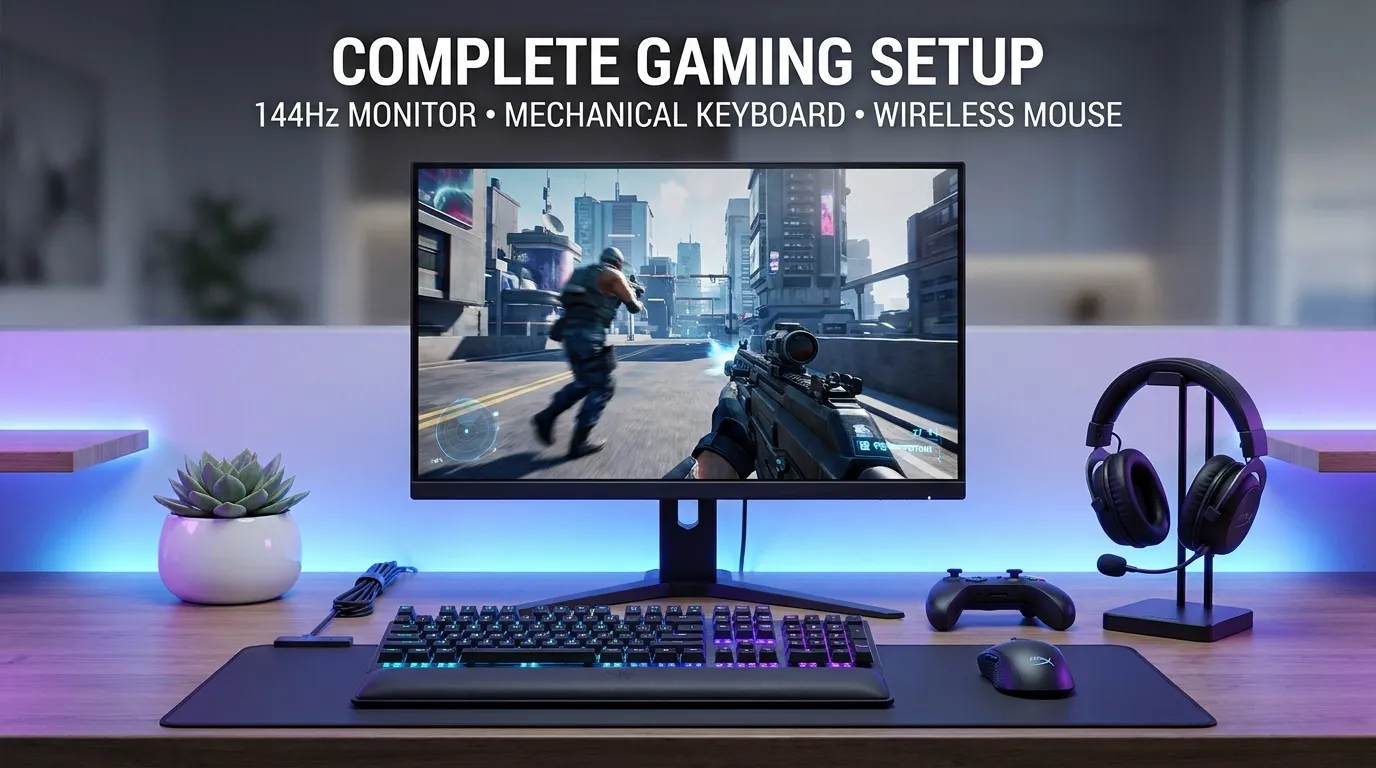
To match your monitor’s 6.94ms visual responsiveness, eliminate mechanical input lag with high-performance peripherals. We recommend pairing your screen with a mechanical keyboard featuring rapid-actuation switches—detailed in our Mechanical vs Membrane Keyboards Breakdown and an ultra-lightweight gaming mouse from our Wired vs Wireless Gaming Mouse Guide.
11. Is a 144Hz monitor worth it for console gaming? (Velogamer Pick)
Yes, but with caveats. PS5 and Xbox Series X cap at 120Hz, so a 144Hz monitor runs those consoles perfectly with room to spare. However, a 144Hz monitor only makes sense for console gaming if it supports HDMI 2.1, VRR, and 4K output for the best PS5/Xbox experience. For 1080p console gaming, a cheaper 120Hz TV or budget monitor may be more cost-effective.
12. Can I connect a 144Hz monitor to a laptop? (Velogamer Pick)
Yes — as long as your laptop has a USB-C port with DisplayPort Alt Mode, or a full-size HDMI 2.0+ port. Check your laptop’s spec sheet for “DP Alt Mode” or “HDMI 2.0” support. On most modern gaming laptops, the USB-C port is wired directly to the dedicated GPU, ensuring 144Hz output with full VRR support. Avoid using cheap USB-C hubs — connect the monitor directly.
9. Official Sources & Verification
To verify the display timing specifications, VESA compliance standards, and VRR validation databases referenced throughout this guide, consult these official industry sources:
- VESA (Video Electronics Standards Association): VESA AdaptiveSync Display Performance Standards & Compliance Database
- NVIDIA Corporation: Official NVIDIA G-Sync & G-Sync Compatible Validated Monitors List
- Advanced Micro Devices (AMD): AMD FreeSync & FreeSync Premium Pro Technology Specifications
- Blur Busters (Chief Blur Buster Mark Rejhon): Blur Busters Scientific Display Motion Blur & G-Sync 101 Testing
- LG Electronics Display: LG UltraGear Nano IPS Gaming Display Architecture
Call to Action: Elevate Your Visual Fluidity Today
Are you rocking an ultra-fast 27-inch 1440p IPS panel, competing on a pure esports 1080p setup with DyAc strobing, or indulging in the infinite contrast of a QD-OLED display? Share your monitor model, resolution, and GPU pairing in the comments below! Be sure to bookmark VeloGamer.com and subscribe to our newsletter for daily gaming hardware reviews, display calibration guides, and competitive esports tips.