
Steam Family Sharing Guide (2026): Complete Setup, Requirements & Troubleshooting
Last Updated: October 17, 2026
Buying the same game multiple times for every member of your household can become expensive. Fortunately, Steam Family Sharing—now integrated into Steam Families—allows eligible family members living in the same household to access a shared game library while maintaining their own Steam accounts, achievements, cloud saves, and friend lists. Steam Families replaced the older Family Sharing system with improved sharing, parental controls, and family management features.
Whether you’re setting up a gaming PC for your children, sharing your collection with a sibling, or helping a partner access your library, this guide explains everything you need to know.
Steam Family Sharing Quick Summary: Steam Families allows up to 6 household members to share game libraries. It requires Steam Guard, is free to use, and keeps all saves, achievements, and playtime separate. Publishers can opt out of sharing, and two people cannot play the same single license at the same time.
Table of Contents
- What is Steam Family Sharing?
- How Steam Families Works
- Benefits of Steam Family Sharing
- Requirements Before Using Steam Family Sharing
- Who Can Join a Steam Family?
- Supported & Unsupported Games
- Library Sharing Rules
- Step-by-Step Setup Guide
- Managing Your Steam Family
- Troubleshooting Common Issues
- Security Tips
- FAQs
- Conclusion
What is Steam Family Sharing?
Steam Family Sharing is a feature that allows eligible members of a Steam Family to access games purchased by other family members without purchasing separate copies for every player.
Unlike the original Family Sharing feature, the modern Steam Families system is centered around a shared family group instead of manually authorizing individual devices. Family members keep separate accounts while sharing access to eligible games in the family collection. Progress, achievements, cloud saves, screenshots, and settings remain separate for each player.
Instead of logging into another person’s account, everyone signs in using their own Steam account. This means individual achievements, separate save files, separate inventories, individual friend lists, and separate recommendations remain completely independent.
How Steam Families Works
Steam Families creates a household-based group where eligible members can share game ownership. When someone purchases a game:
- The game remains owned by that account.
- Eligible family members can install it.
- Progress is stored on each player’s own Steam profile.
- DLC ownership generally follows the game owner’s license unless specifically required by the game.
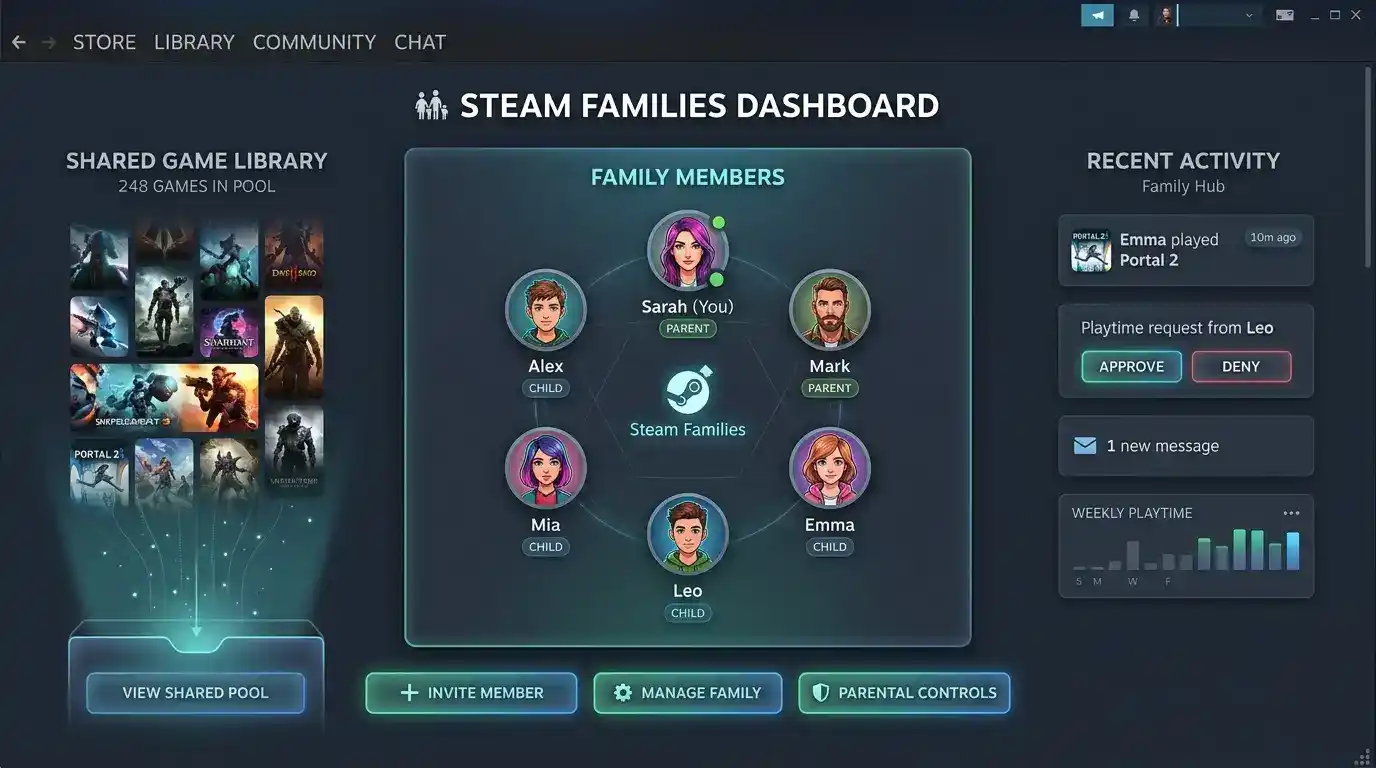
Steam Families also introduces family management, child accounts, purchase approval, playtime visibility, parental controls, and easier library sharing than the previous system. These improvements replaced many of the limitations of the legacy Family Sharing feature.
Benefits of Steam Family Sharing
- Save Money: Instead of purchasing duplicate copies for every family member, one purchase can often be shared among eligible household members.
- Separate Game Progress: Every player receives individual achievements, personal game settings, own cloud saves, and independent play history. Nobody overwrites another person’s progress.
- Built-In Parental Controls: Parents can approve purchases, view playtime, restrict access, and manage child accounts.
- Easier Family Management: Instead of authorizing every individual computer manually, family membership is managed from one Steam Family group.
Requirements Before Using Steam Family Sharing
1. Every Person Needs Their Own Steam Account
Each member must use their own Steam account. Sharing one account is not recommended because achievements mix together, cloud saves overwrite, and purchases become difficult to manage.
2. Steam Guard Must Be Enabled
Steam Guard provides an additional layer of account security and is required for important account management features. Enabling Steam Guard helps protect shared accounts from unauthorized access.
3. Household Eligibility
Steam Families is designed for members of the same household. Valve may limit or restrict family groups that appear to violate these household requirements. Always follow the official Steam Subscriber Agreement and Steam Families rules.
4. Internet Connection & Latest Client
An internet connection is required for joining a family, verifying licenses, and downloading games. Always update Steam before creating or joining a Steam Family, as running an outdated client may prevent newer features from appearing.
Who Can Join a Steam Family?
Steam Families is intended for parents, children, siblings, partners, and other members of the same household who meet Steam’s eligibility requirements.
Family membership is limited (currently up to 6 members), and users cannot freely move between multiple families without restrictions designed to prevent abuse. Exact limits and cooldowns are managed by Valve and may change over time.
Supported & Unsupported Games
Supported Games
Most Steam games support Family Sharing. Examples include many single-player games, RPGs, simulation games, strategy games, indie games, and adventure games. Examples of popular eligible titles include:
- Stardew Valley
- Terraria
- Hollow Knight
- Celeste
- Euro Truck Simulator 2
- Cities: Skylines
- Slay the Spire
Unsupported Games
Not every Steam game can be shared. Games may be unavailable if they:
- Require third-party launchers with separate licenses
- Require additional activation keys
- Use publisher restrictions
- Have non-transferable licenses
- Depend on external subscriptions
- Are specifically excluded by the publisher
Some free-to-play games also do not benefit from library sharing because they are already available at no cost. Always check the game’s Steam Store page if you’re unsure.
Library Sharing Rules
- The owner always keeps ownership: Sharing does not transfer ownership. The purchaser always remains the legal owner of the game license.
- Save files remain separate: Your saves never overwrite another family member’s saves. Every player receives independent cloud saves, achievements, settings, and screenshots.
- DLC behavior varies: Some downloadable content works automatically when using a shared game. Others require ownership by the borrower, ownership by the original purchaser, or game-specific support.
- Simultaneous play: If only one copy of a game exists in the family collection, one person can play that license at a time. If multiple family members own copies, they can play simultaneously.
Complete Step-by-Step Setup Guide
Step 1 — Update Steam
Always use the latest Steam client. Open Steam, click Steam in the upper-left corner, select Check for Steam Client Updates, install available updates, and restart Steam.
Step 2 — Enable Steam Guard
Go to Settings > Security and enable Steam Guard. Choose Steam Mobile Authenticator (recommended) or Email verification. The Mobile Authenticator provides the highest level of security.
Step 3 — Open Steam Families
Inside Steam, go to Settings > Family. If your account supports Steam Families, you’ll see options to Create Family, Join Family, or Manage Family.
Step 4 — Create a Steam Family
Click Create Steam Family and choose a family name (e.g., “Smith Family”, “Gaming Household”). The family name is only for identification and can be changed later.
Step 5 — Invite Family Members
Click Invite Member, search using a Steam Friend or Steam account name, select the correct account, and click Send Invitation.
Step 6 — Accept the Invitation
The invited member should open Steam, navigate to Notifications, and accept the Family Invitation. Once accepted, they’ll automatically become part of the Steam Family.
Step 7 — Shared Library Becomes Available
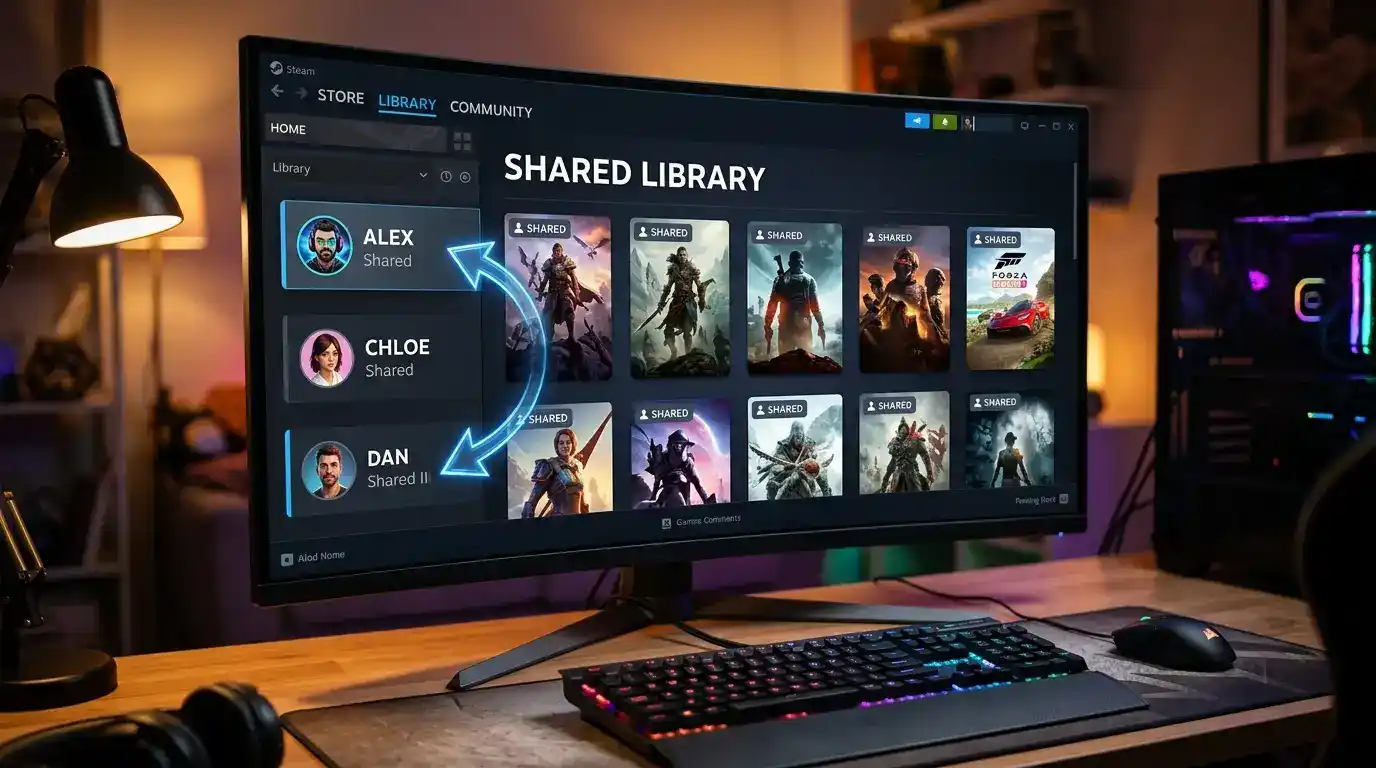
After joining, eligible games from family members automatically appear inside the recipient’s Steam Library. No manual copying is required. Games can simply be installed, downloaded, and played.
Managing Your Steam Family
Go to Steam > Settings > Family to view members, remove members, manage permissions, send invitations, and view family settings.
Family Roles
- Adult: Can invite/remove members, purchase games, manage family, and configure parental controls.
- Child: Limited permissions. Parents can approve purchases, limit features, view playtime, and control access.
Purchase Requests
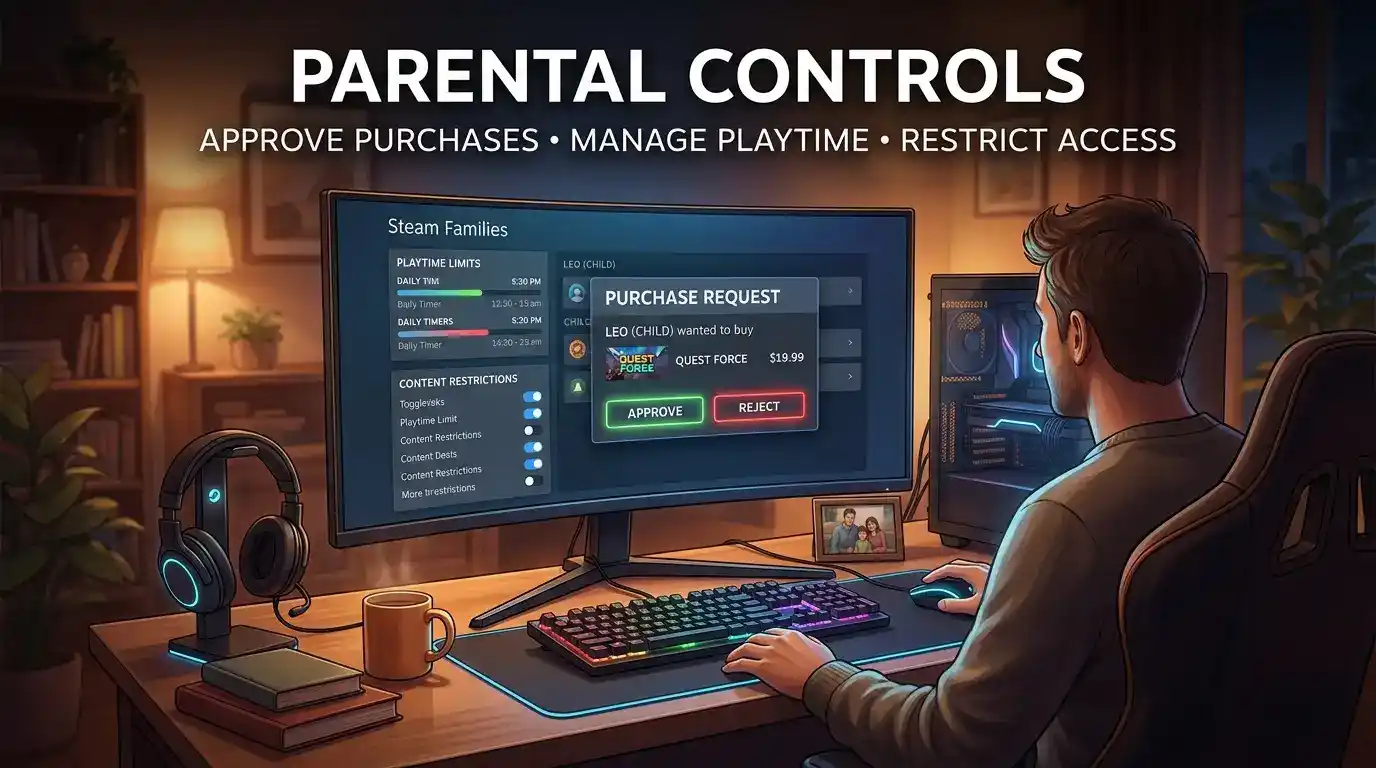
Children can request games. Instead of entering payment details, they send a purchase request. Parents receive a notification and can approve or reject it. If approved, the purchase is completed using the parent’s payment method.
Leaving or Removing Members
To leave a family, go to Settings > Family > Leave Family. Keep in mind Valve places restrictions on frequently joining and leaving families to prevent abuse. Adults can remove members via Manage Members > Select Member > Remove. Removed users immediately lose access to shared games.
Steam Family Sharing Troubleshooting
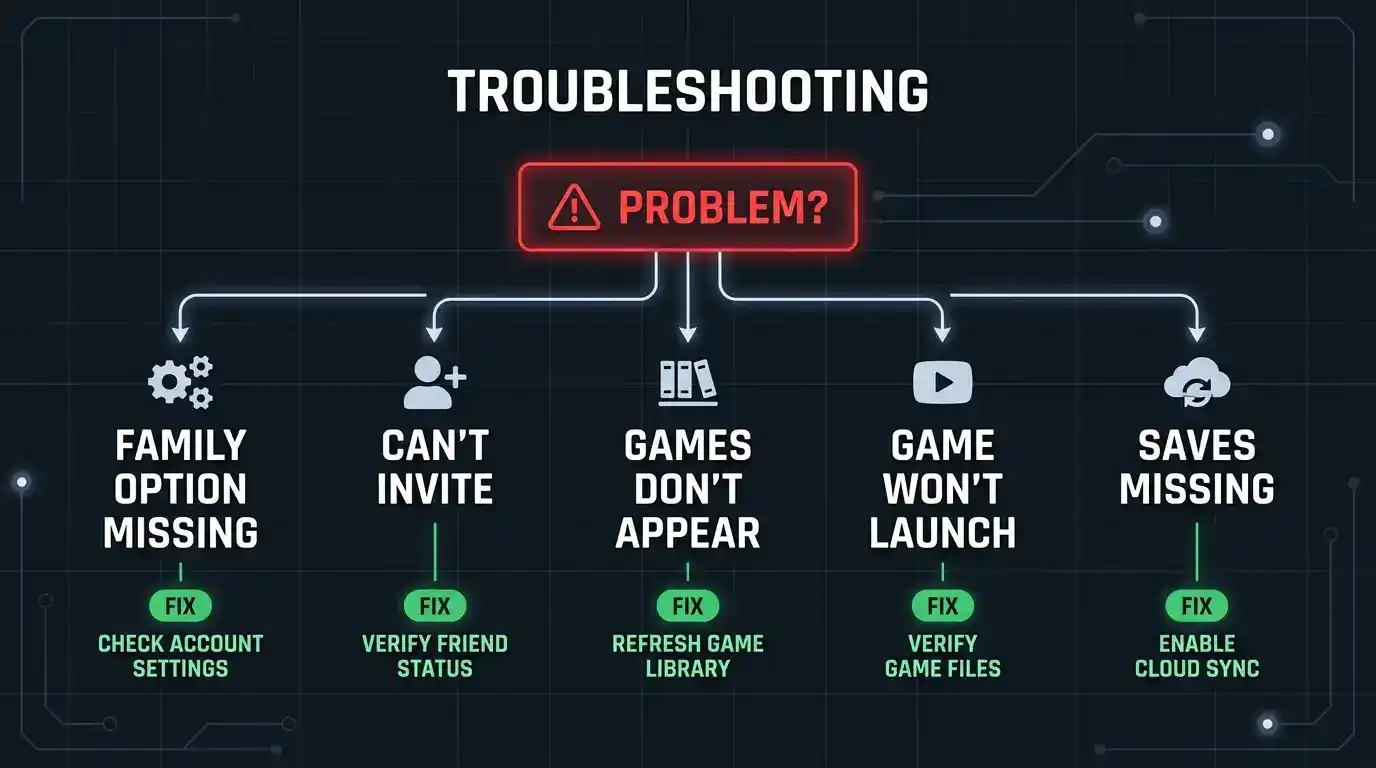
1. Steam Family Option Is Missing
Causes: Outdated client, wrong account, or server issues.
Solutions: Update Steam, restart completely, sign out and back in, verify Steam Guard is enabled.
2. Can’t Invite Family Members
Causes: User doesn’t meet eligibility, recent family switch cooldown.
Solutions: Verify household eligibility, wait if a cooldown applies, try again later.
3. Shared Games Don’t Appear
Fix: Restart Steam, refresh your Library, verify the game supports sharing (not blocked by publisher), and ensure the invitation was accepted.
4. Game Won’t Launch
Fix: License verification may have failed. Restart Steam, verify game files, reconnect to the internet, or try again later if servers are busy.
5. Save Files Are Missing
Steam Families does not merge save files. Confirm you’re signed into the correct account, enable Steam Cloud sync, and check the local save directory.
Steam Family Sharing Security Tips
- Enable Steam Guard: Adds an extra layer of protection.
- Never Share Your Password: Family members should always use their own accounts.
- Use Mobile Authenticator: Protects against unauthorized logins.
- Review Family Regularly: Remove anyone who no longer belongs to your household.
- Keep Recovery Info Updated: Ensure email and phone numbers are current.
⚠️ VAC Bans & Abuse: Valve warns that misuse of shared games can have consequences. If a borrower cheats in a shared game protected by Valve Anti-Cheat (VAC), it may impact access to that shared game and carry other account consequences. Every player is responsible for following the game’s rules.
Frequently Asked Questions (FAQs)
Can I share every Steam game?
No. Publishers can choose to exclude certain games from Steam Families. Always check the game’s Steam Store page.
Can friends join my Steam Family?
Steam Families is intended for members of the same household.
Can two people play the same game simultaneously?
Only if the family owns enough eligible licenses for that game. A single shared license generally cannot be used by multiple players at the same time.
Will achievements be shared?
No. Each player has separate achievements, playtime, Steam Cloud saves, screenshots, and game settings.
Can I play offline?
Many games support offline play after installation, but Steam may periodically require an online connection to verify licenses.
Is Steam Family Sharing free?
Yes. Steam Families is included with every free Steam account.
Can I share DLC?
It depends on the game’s licensing rules and how the developer has configured DLC sharing.
Conclusion
Steam Families is a major improvement over the original Steam Family Sharing system, making it easier for eligible household members to enjoy a shared game library while keeping personal progress, achievements, and cloud saves separate.
By understanding the eligibility requirements, supported games, licensing rules, and security best practices, you can set up your Steam Family with confidence and avoid common issues. Always keep your Steam client updated, enable Steam Guard, and invite only trusted household members to ensure a smooth and secure sharing experience.
Call to Action: Enjoyed this guide? Explore more Steam tutorials on Velogamer.com and stay updated with the latest Steam features, PC gaming tips, walkthroughs, reviews, and news.