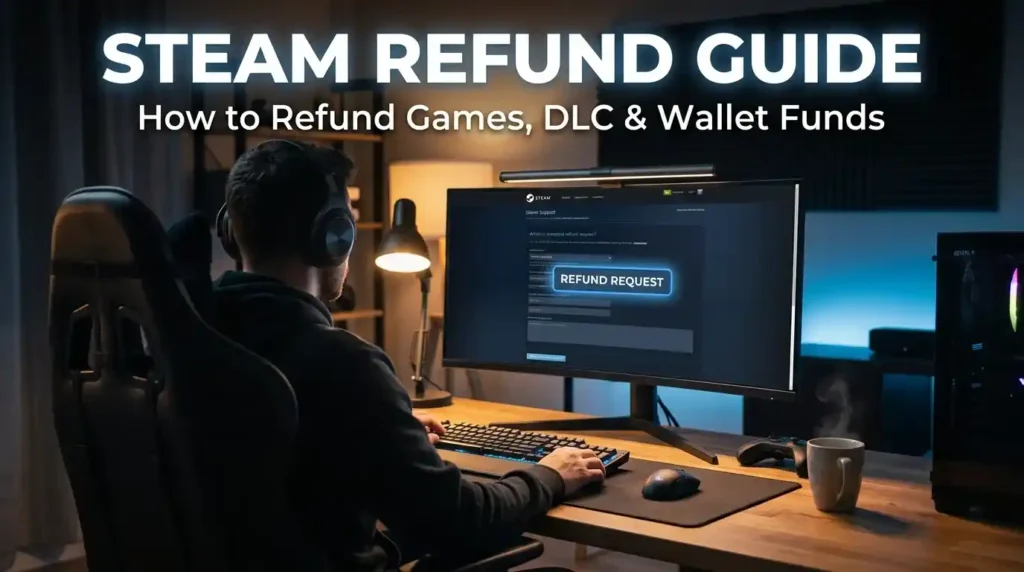
Steam Refund Guide: How to Refund a Game, DLC and Wallet Funds
Last verified: October 17, 2026
Quick answer: Under Valve’s official policy, you can request a refund on nearly any Steam purchase, for any reason. For games and software, the request must come within 14 days of purchase, and the title must have been played for less than two hours. Requests are made at help.steampowered.com. Approved refunds are issued within a week, as Steam Wallet funds or to your original payment method.
You bought it on a whim, the launch crashed, or the first hour just wasn’t for you. Whatever the reason, you don’t have to eat the cost. Steam’s refund system exists to take the risk out of buying, and in most cases it works exactly as advertised.
The catch is that “any reason” comes with limits. A clock is running (14 days), a playtime counter is running (two hours), and some purchase types follow different rules. DLC, in-game items, pre-orders, bundles, gifts and wallet top-ups each have their own conditions.
This Steam refund guide walks through every rule on Valve’s official refund page, shows you how to file a Steam refund request step by step, and covers what to do when something goes wrong. We verified the policy against Valve’s page on October 17, 2026. That page lists its last update as April 23, 2024.
Table of Contents
- What Is the Steam Refund Policy?
- Who Is Eligible for a Refund?
- Games Eligible for Refund
- Games and Purchases Not Eligible
- Step-by-Step Refund Guide (Desktop)
- Refund Using the Steam Website
- Pre-Orders, Early Access, Bundles and Gifts
- Refund for DLC
- Refund for In-Game Purchases
- Steam Wallet Funds and Subscriptions
- Refund Processing Time
- Common Refund Problems
- Tips to Increase Refund Approval
- FAQs
- Conclusion
What Is the Steam Refund Policy?
The Steam refund policy is Valve’s published promise that you can ask for your money back on almost any Steam purchase. Valve’s wording is direct: you can request a refund for nearly any purchase, for any reason. A game that doesn’t meet your PC’s hardware requirements counts. So does a mistaken purchase, or a game you simply didn’t enjoy.
The headline rule applies to games and software applications on the Steam store. If you ask within two weeks of purchase and have played the title for less than two hours, Valve will issue the refund.
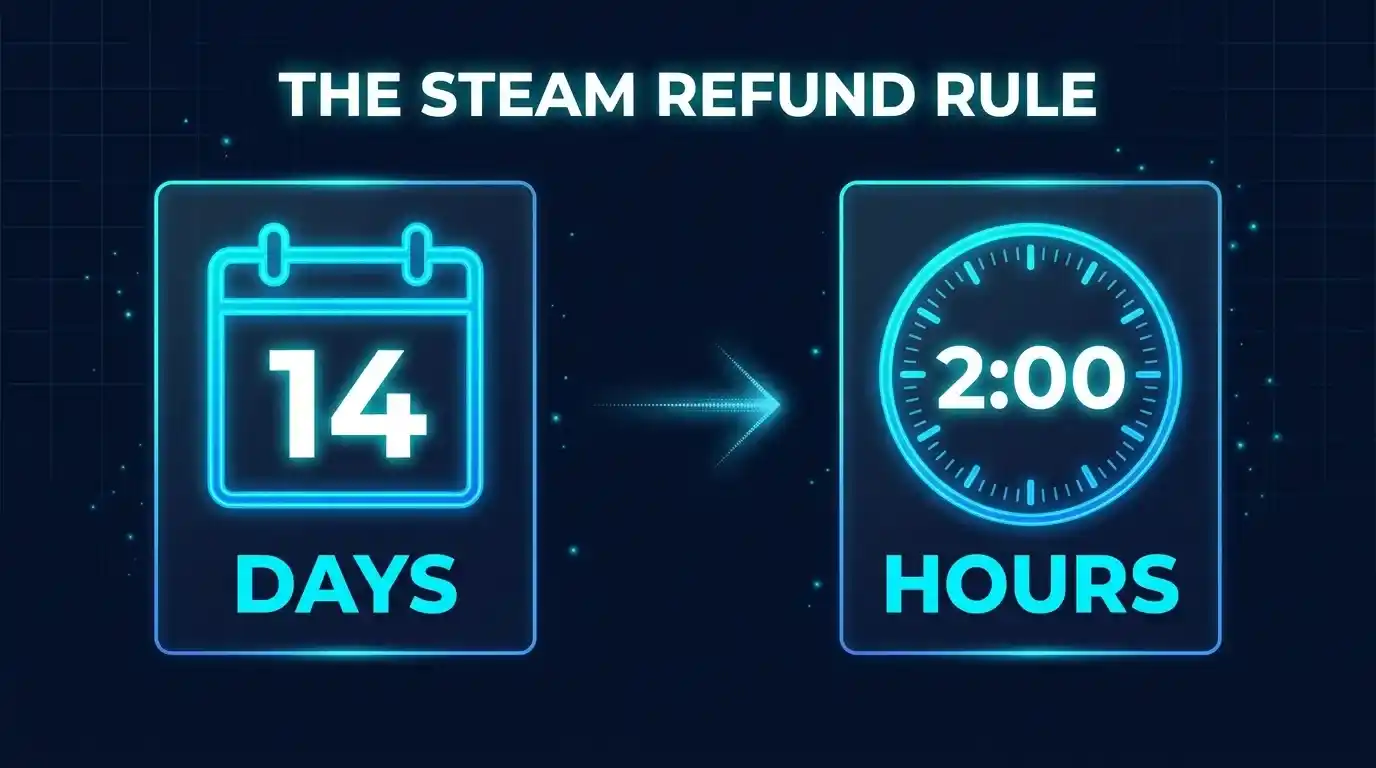
Three things are worth knowing up front:
- You can ask even if you miss the window. Valve says that if you fall outside the standard rules, you can still request a refund and the team will take a look. That is an invitation to ask, not a guarantee. Treat the 14-day, two-hour rule as the reliable path and anything beyond it as a judgment call.
- Local law may add rights. Valve notes that consumers in some jurisdictions may have additional refund rights when a game is faulty. Steam also has a separate explainer for the EU right of withdrawal, linked from the policy page.
- Refunds are not a free-games loophole. Valve states that refunds are meant to remove purchase risk, not to hand out free games. If the company believes you are abusing the system, it may stop offering refunds to you.
Who Is Eligible for a Refund?
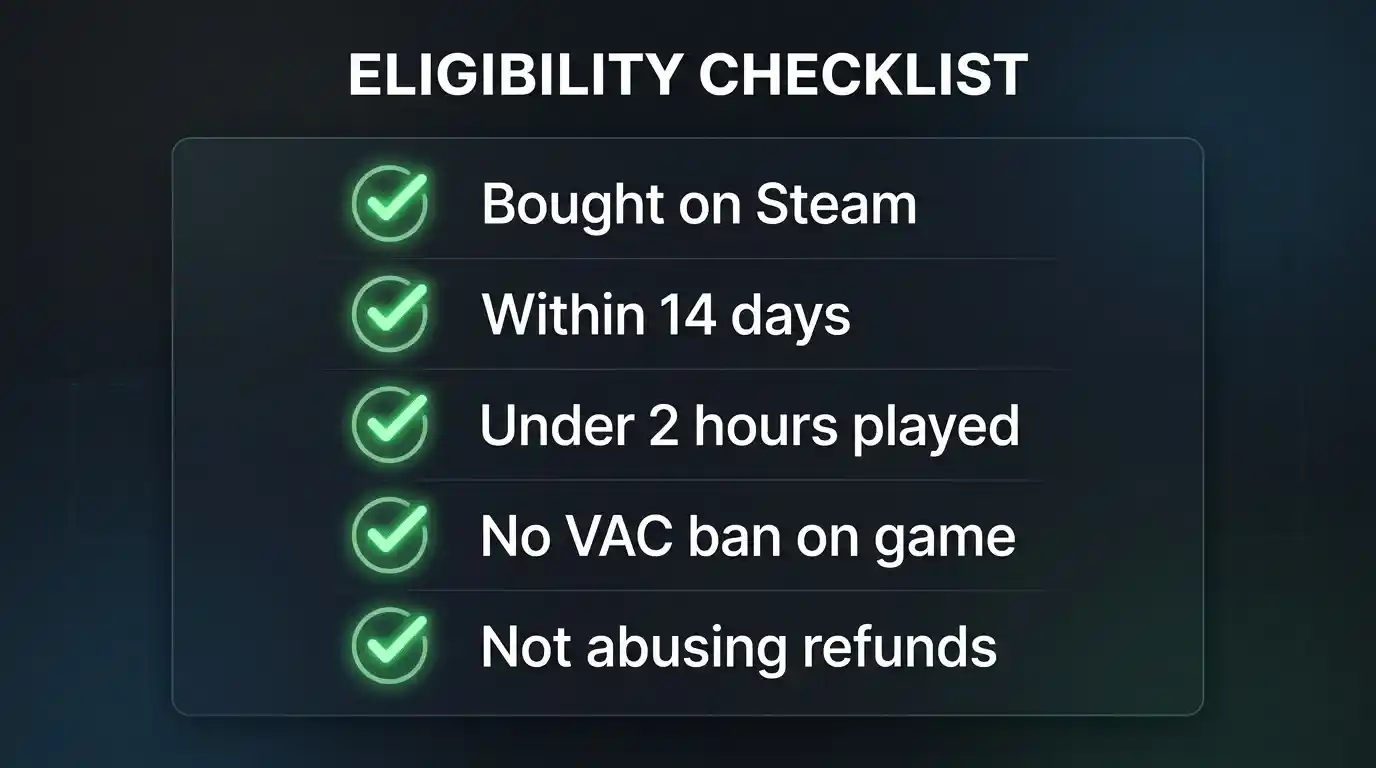
Eligibility comes down to a short checklist. Your purchase is in good shape for a refund if all of these are true:
- You bought it on Steam. Purchases made through the Steam store qualify. Purchases made elsewhere do not.
- You are inside the return period. For games and software, that is 14 days from purchase.
- Playtime is under two hours. This applies to games. Software and other content follow the conditions listed for that purchase type.
- You haven’t been VAC banned on that game. A VAC ban removes your right to refund that game.
- You aren’t abusing the system. Valve says it may stop offering refunds to accounts that appear to abuse them.
Here is how the rules differ by purchase type, as set out on Valve’s refund page:
| Purchase type | Refund window | Key condition |
|---|---|---|
| Games and software | 14 days | Played under 2 hours |
| DLC | 14 days | Underlying title played under 2 hours since the DLC was bought; DLC not consumed, modified or transferred |
| In-game purchases (Valve games) | 48 hours | Item not consumed, modified or transferred |
| In-game purchases (non-Valve games) | Only if the developer opted in | Steam tells you at purchase |
| Steam Wallet funds | 14 days | Bought on Steam; none of the funds used |
| Renewable subscriptions | 48 hours from purchase or renewal | Not used in the current billing cycle |
| Bundles | Standard period | No item transferred; combined usage under 2 hours |
| Gifts | 14 days / 2 hours | See the gifts section below |
If your purchase doesn’t fit neatly into one row, the safest move is still to submit a request and let Steam evaluate it.
Games Eligible for Refund
Most standard game purchases qualify. If you bought a game or software application on the Steam store, requested the refund within 14 days, and have under two hours on the clock, you meet the standard test.
A few details sharpen that rule:
- Any reason is valid. You do not need to prove the game is broken. Valve explicitly lists “bought it by mistake” and “didn’t like it” as acceptable.
- Playtime is the hard limit. The two-hour ceiling is part of the standard offer. If you’re unsure whether a game is for you, stop playing as soon as you have doubts. Every minute counts.
- Pre-purchases get special timing. If you buy a title before release, the two-hour limit still applies, but the 14-day period doesn’t begin until the release date.
- Valve may still look at borderline cases. If you’re at two hours and ten minutes, or day 15, Valve says you can ask anyway. Don’t count on it, but don’t skip asking if you have a genuine reason.
Games and Purchases Not Eligible
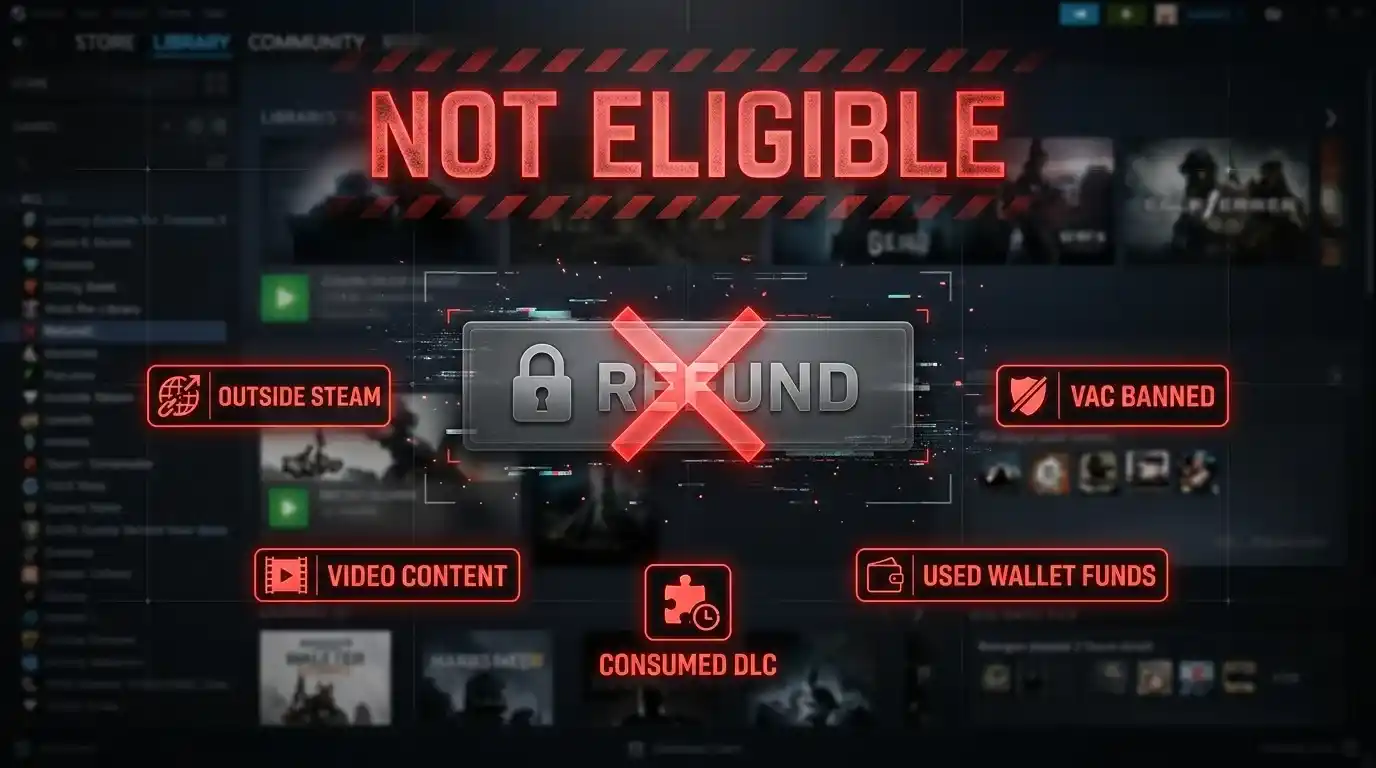
Valve’s page names several situations where refunds are not available, or are not available in the usual way.
- Purchases made outside Steam. Valve can’t refund CD keys or Steam Wallet cards bought from third parties. If you activated a key from another retailer, you need to go back to that seller.
- Games where you’ve been VAC banned. A VAC ban on a game removes your right to refund it.
- Video content. Movies, shorts, series, episodes and tutorials sold on Steam aren’t refundable, unless the video sits in a bundle with other refundable, non-video content.
- In-game purchases in non-Valve games, unless the developer opted in. Steam tells you at checkout whether the developer offers refunds on that item.
- Consumed, modified or transferred items. DLC and in-game items that have been used, changed or traded generally aren’t refundable. Some third-party DLC, such as content that irreversibly levels up a character, can be marked non-refundable on the store page before you buy.
- Accounts flagged for abuse. Valve may stop offering refunds to users who appear to be abusing the system. Valve does not consider it abuse to refund a game bought just before a sale and then rebuy it at the sale price.
- Used Steam Wallet funds. Wallet refunds require that none of the funds have been spent.
Step-by-Step Refund Guide (Desktop)
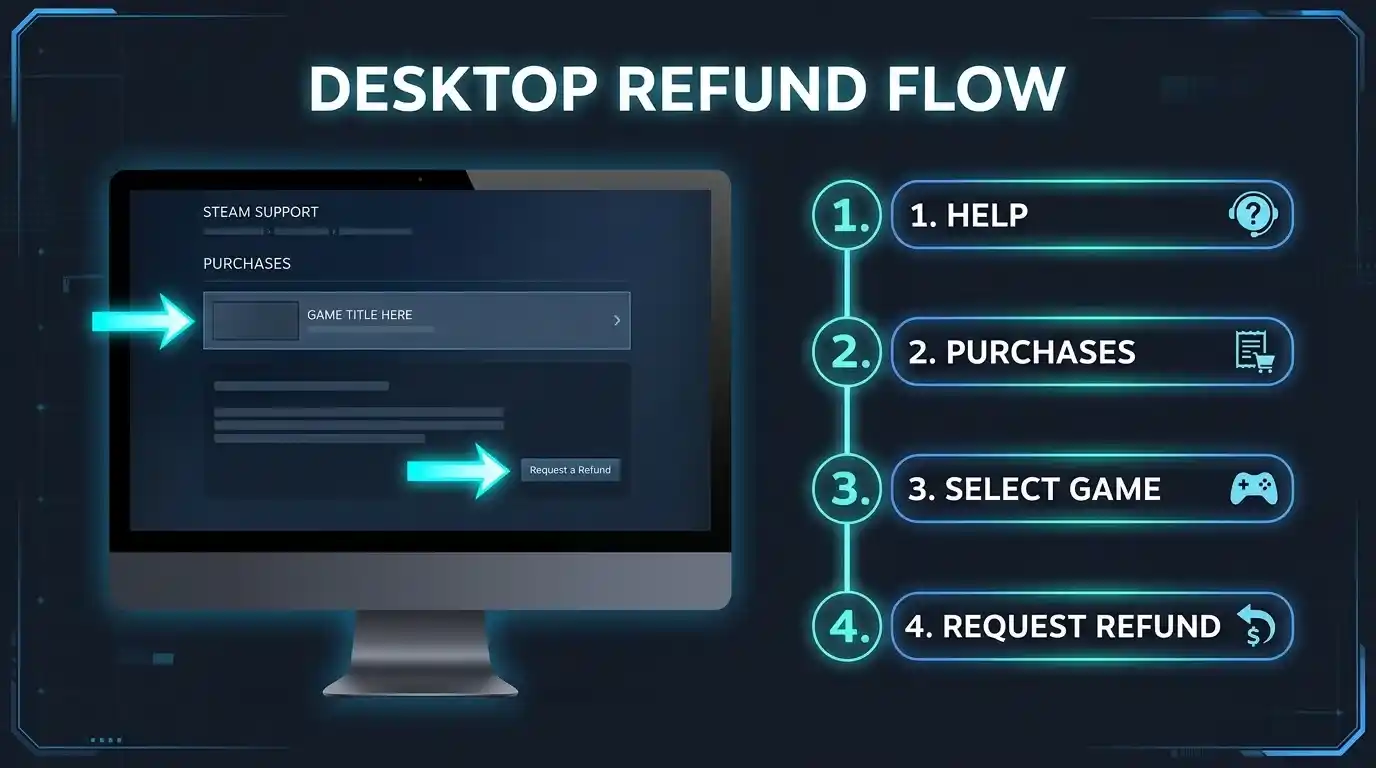
Valve’s policy page says refunds are requested through help.steampowered.com. The steps below follow the Steam Support flow as it appears at the time of writing. Menu labels can change, so if a button reads slightly differently, look for the closest match.
- Open Steam and go to Help. In the desktop client, click Help in the top menu bar, then choose Steam Support.
- Sign in if prompted. Use the same account that made the purchase.
- Open Purchases. Select Purchases to see a list of your recent orders. You can also browse Games, Software, etc. and pick the title directly.
- Select the game. Click the title you want refunded.
- Choose “I would like a refund.” When Steam asks what issue you’re having with the purchase, pick the refund option. Steam may first suggest fixes for technical problems.
- Click “I’d like to request a refund.” Steam checks whether the purchase is eligible.
- Pick your refund method. You’ll usually choose between Steam Wallet funds and your original payment method, if that method supports refunds.
- Select a reason. Use the dropdown, then add a short note if you want to explain.
- Submit your request. You’ll receive confirmation, and Steam emails you with the outcome.
💡 Quick Tip
Check your playtime before you submit. If you are close to the limit, don’t launch the game again while you wait.
Refund Using the Steam Website
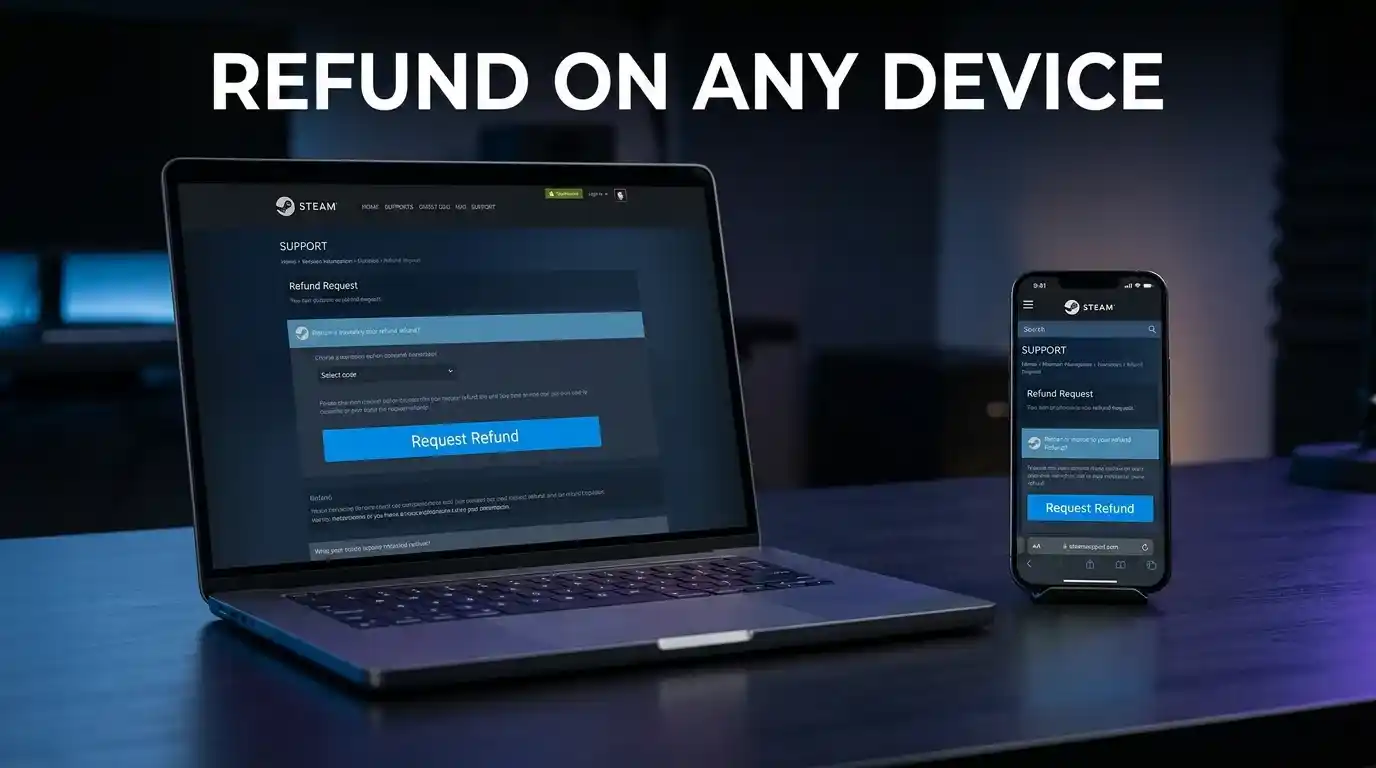
You don’t need the desktop client at all. The same Support flow works in any browser, including on a phone or tablet.
- Go to help.steampowered.com and sign in with your Steam account.
- Choose Purchases, or find the game under Games, Software, etc.
- Select the item and click I would like a refund, then I’d like to request a refund.
- Choose Steam Wallet or your original payment method.
- Select a reason, add notes if you wish, and submit.
If you sign in from a mobile browser, the layout is narrower but the options are the same. This is handy when you realize a purchase was a mistake and you’re away from your PC.
Pre-Orders, Early Access, Bundles and Gifts
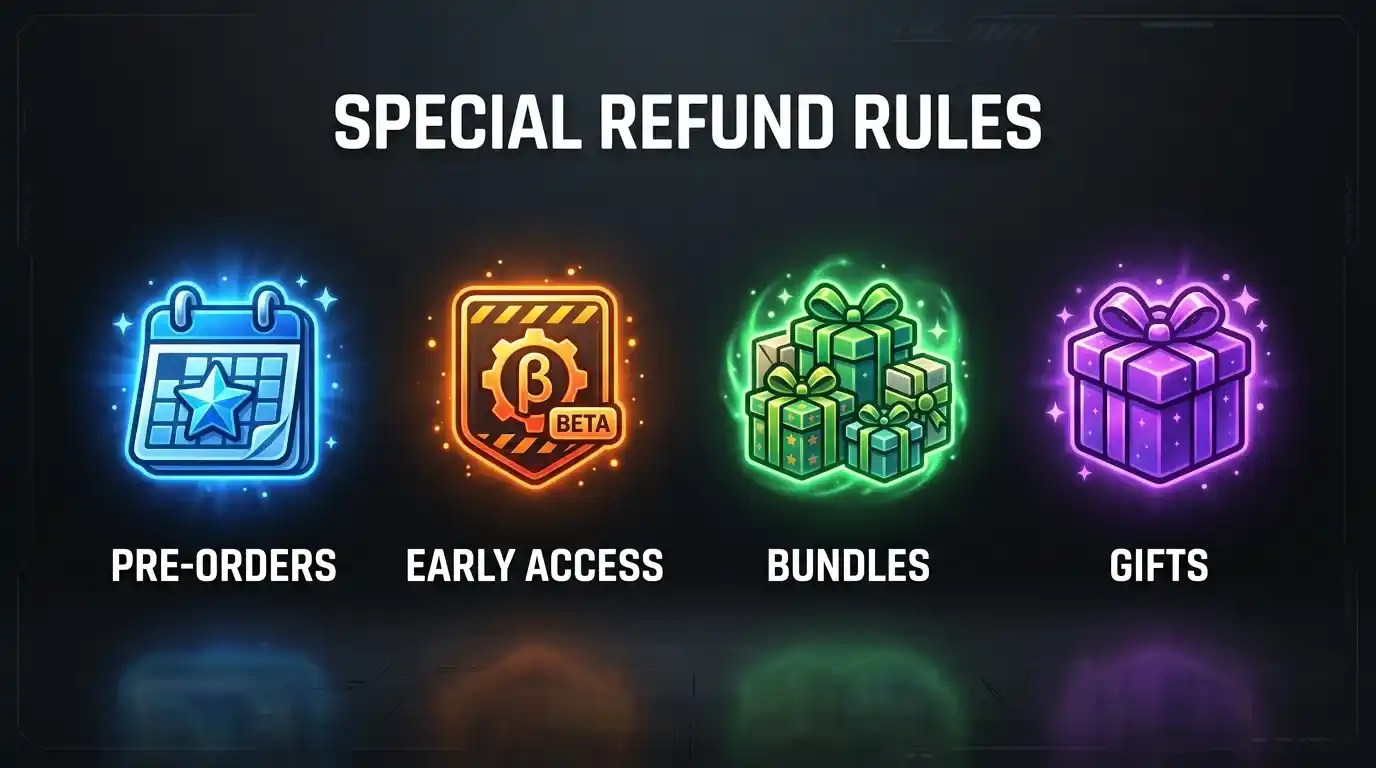
These categories trip people up the most, so they get their own section. All details below come from Valve’s refund page.
Pre-orders
If you buy a title before its release date, the two-hour playtime limit applies, but the 14-day clock doesn’t start until release day. If the game isn’t playable before launch, you can request a refund at any time before release. Once it releases, the standard 14-day, two-hour period starts.
Early Access and Advance Access
Titles playable before release count every minute of play against the two-hour limit. Beta testing is the exception noted by Valve. Steam has separate help pages explaining Early Access and Advance Access.
Bundles
A bundle can be fully refunded if none of the items in it have been transferred and the combined usage time across all items is under two hours. If a bundle includes non-refundable DLC or an in-game item, Steam tells you at checkout whether the whole bundle is refundable.
Gifts
Unredeemed gifts can be refunded within the standard 14-day, two-hour period. Redeemed gifts can also be refunded under the same conditions, but only if the gift recipient starts the refund. The money goes back to the original purchaser.
Refund for DLC
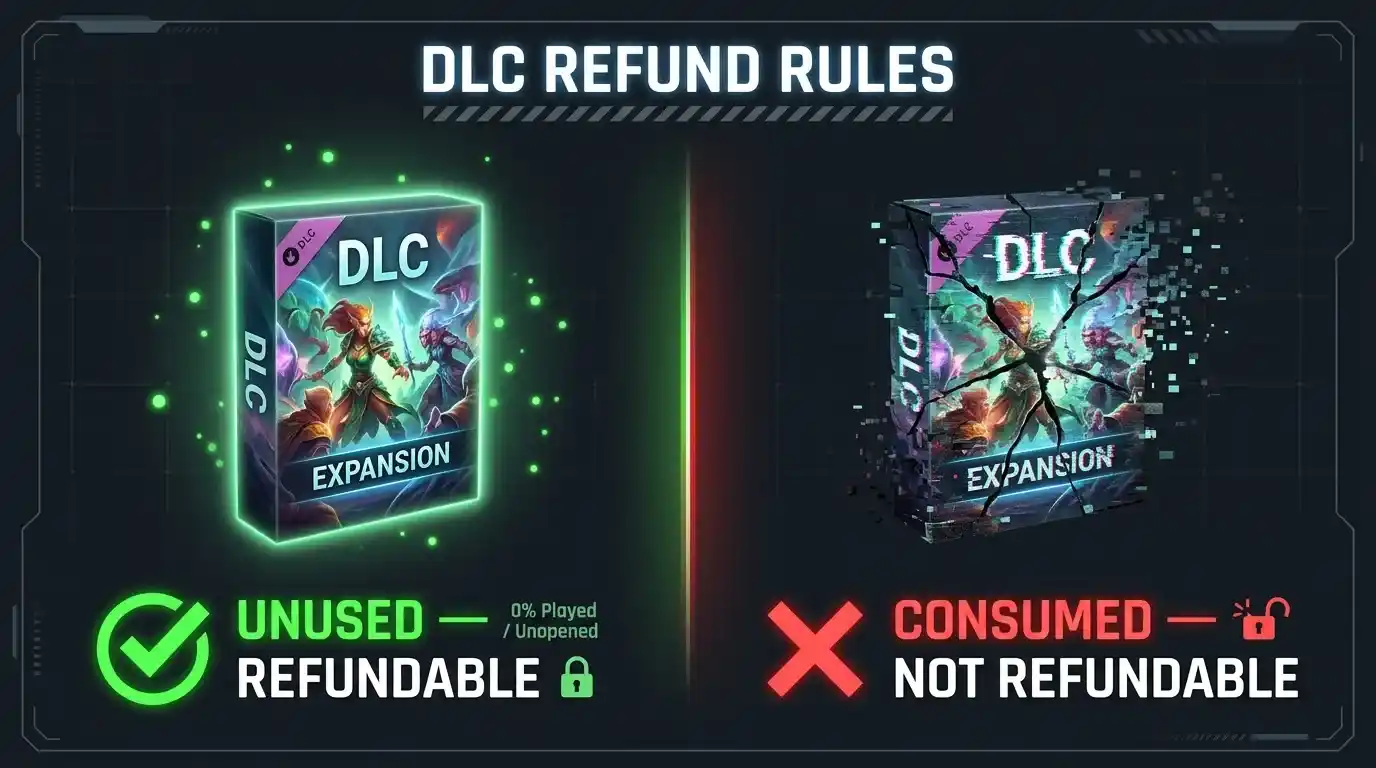
DLC means Steam store content that works inside another game or software application. It is refundable within 14 days of purchase, provided two conditions hold:
- The underlying game has been played for less than two hours since the DLC was purchased.
- The DLC has not been consumed, modified or transferred.
That second bullet is where people get caught. If a DLC item has been used up or permanently changed your save, expect a denial. Valve also warns that some third-party DLC can’t be refunded. An example it gives is DLC that irreversibly levels up a character. Any such exceptions are clearly marked as non-refundable on the store page before you buy, so read the page before you pay.
The process is the same as for a game: open Purchases on the Support Site, select the DLC, and request a refund.
Refund for In-Game Purchases
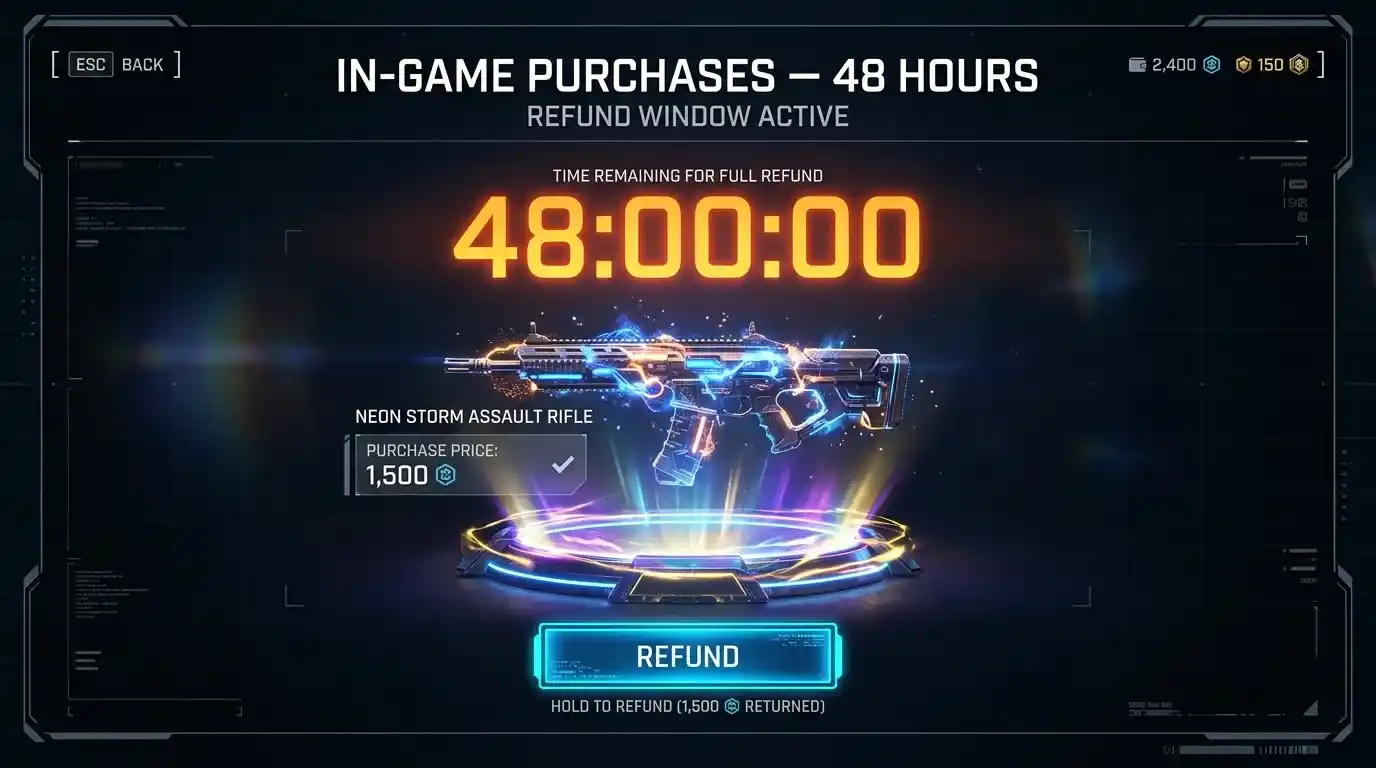
In-game purchases are items you buy with real money inside a game, such as cosmetics or currency, and they follow narrower rules.
- Valve-developed games: Steam offers refunds within 48 hours of purchase, as long as the item has not been consumed, modified or transferred.
- Non-Valve games: Third-party developers can opt in to offer refunds on the same terms. Steam tells you at the time of purchase whether the developer has opted in. If they haven’t, the item is not refundable through Steam.
If you spend money in a game you don’t plan to keep playing, watch the 48-hour clock. And always read the notice at checkout. It tells you right then whether Steam can reverse the purchase.
Steam Wallet Funds and Subscriptions
Refund a Steam Wallet purchase
You can request a refund on Steam Wallet funds within 14 days of purchase, provided the funds were bought on Steam and you haven’t used any of them. If you’ve spent even part of the balance, the standard rule no longer applies. Wallet cards bought from third-party retailers are a separate matter: Valve can’t refund those.
Renewable subscriptions
For recurring-payment services, you can request a refund within 48 hours of the initial purchase or any automatic renewal, as long as nothing has been used in that billing cycle. Playing any included game, or using, consuming, modifying or transferring any included benefit or discount, counts as use.
Cancelling is separate from refunding. You can cancel a subscription at any time from your account details. After that, it won’t renew, and you keep access until the current billing cycle ends.
Steam hardware
Steam hardware and accessories bought via Steam follow Valve’s separate Hardware Refund Policy.
Refund Processing Time
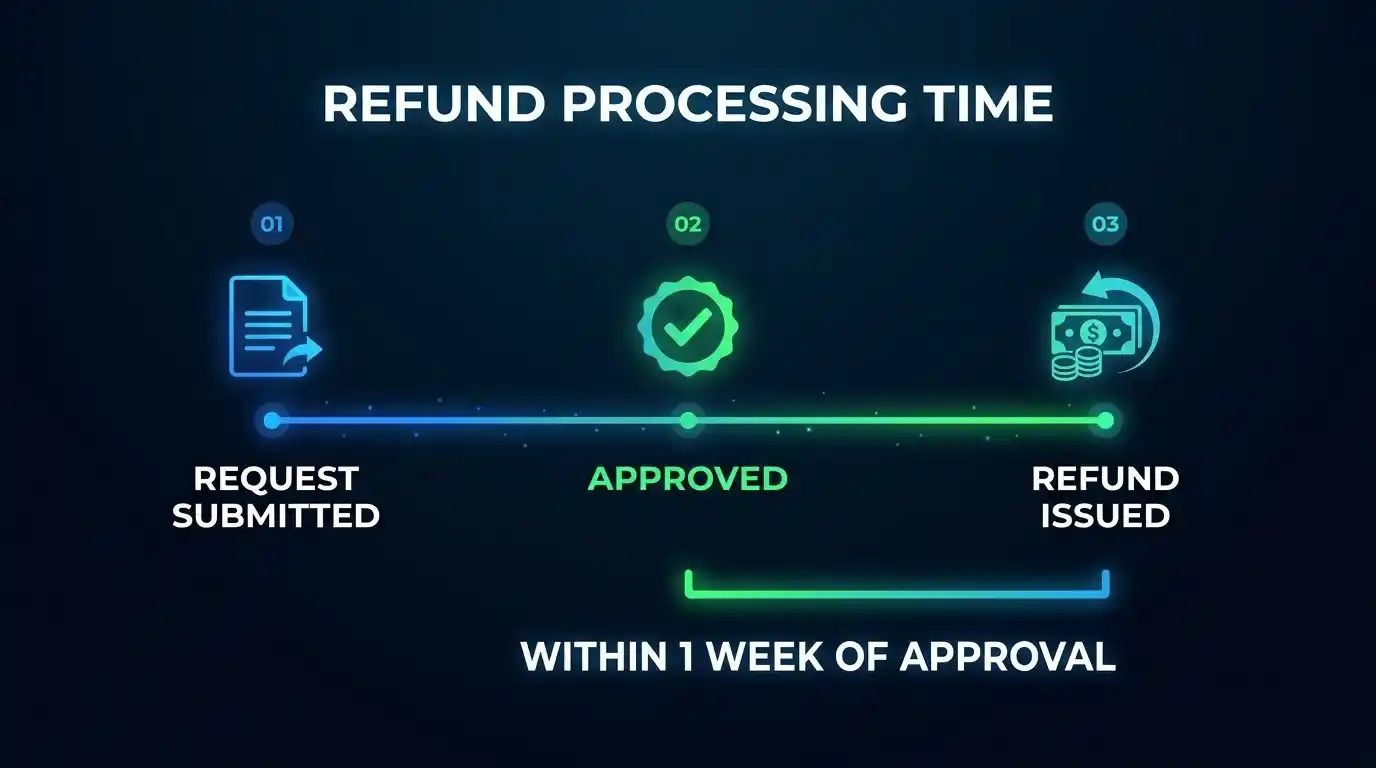
Valve says an approved refund is issued in full within a week of approval. That is the only processing commitment on the official page. The policy page does not publish a guaranteed review time for the decision itself, so avoid assuming a specific number of hours or days.
Where the money lands depends on your choice and your payment method:
- Steam Wallet funds are the destination if you choose wallet, or if Steam can’t refund your original method.
- Original payment method is the other option, if your method supports refunds.
Some payment methods available through Steam don’t support refunds back to the original method. Valve maintains a list of supported refund methods. Check it if you want your money back on a card or e-wallet rather than in Steam credit.
Wallet refunds usually appear in your Steam balance first. Refunds to a bank card or other external method also depend on your bank or payment provider after Steam issues them, so allow extra time before you assume something went wrong.
Common Refund Problems
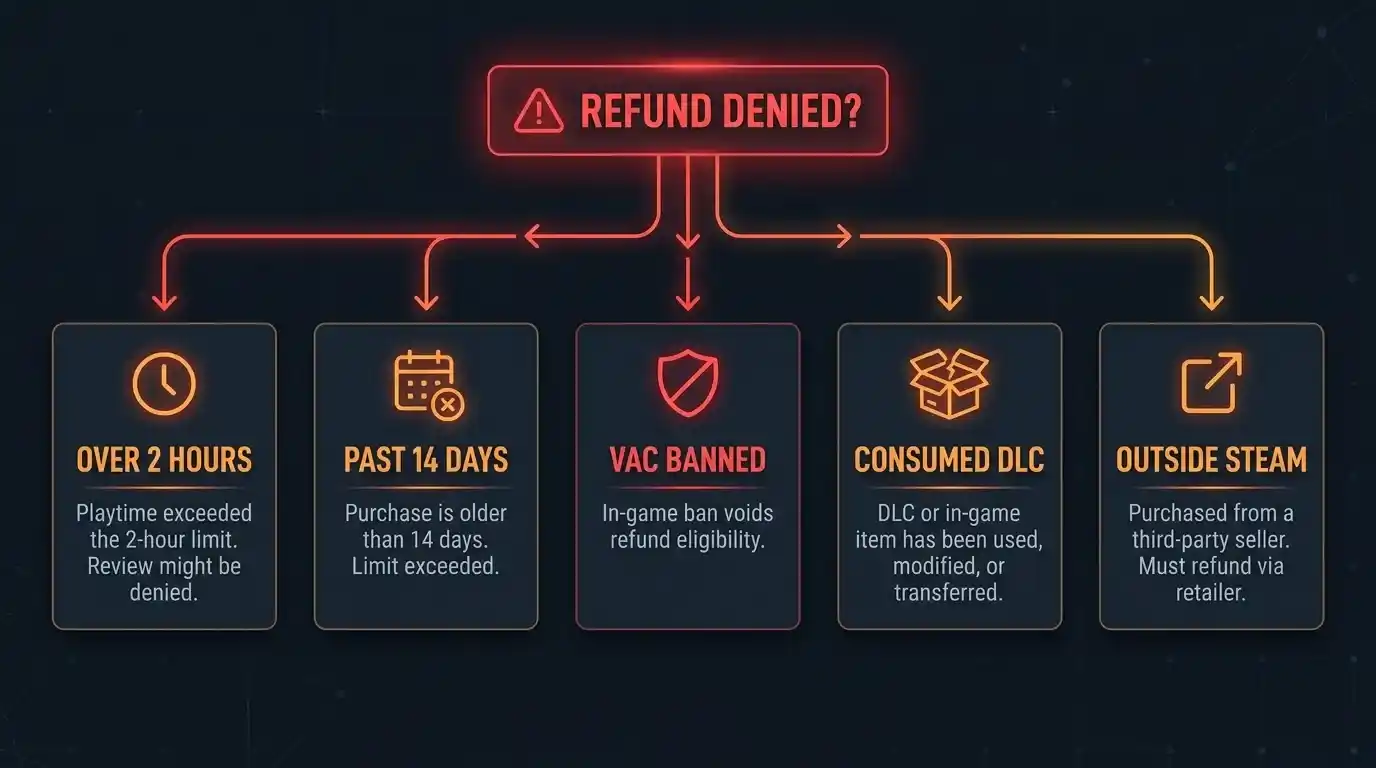
- “I’m over two hours.” This is the single most common denial reason. The two-hour limit is part of the standard offer. You can still submit a request and explain, but don’t expect an automatic approval.
- “It’s past 14 days.” Same story. Valve says you can ask anyway and they’ll take a look, but the policy window is 14 days.
- The refund option isn’t showing. Check whether the purchase is one that follows different rules: an outside key, video content, a consumed DLC item or a wallet top-up you’ve already spent. Also confirm you’re signed into the account that made the purchase, or that you’re the gift recipient for a redeemed gift.
- “My payment method doesn’t support refunds.” Valve credits your Steam Wallet if it can’t refund the original method, and it lists which methods are affected.
- VAC ban on the game. If you’ve been VAC banned on a title, you lose the right to refund that game.
- A bundle won’t refund. Look at the combined playtime across every item. Even one transferred item or one non-refundable component can block the whole bundle.
- A refund denied for abuse. Valve says it may stop offering refunds to accounts that appear to be abusing them. Repeated buy-play-refund cycles are the pattern to avoid.
- A faulty game. Valve notes that consumers in some jurisdictions have additional refund rights when a game is faulty. If your region has such protections, mention the fault in your request and consult local consumer guidance.
- You paid through a third-party seller. Steam can’t help with keys or wallet cards purchased outside Steam. Contact the retailer instead.
Tips to Increase Refund Approval
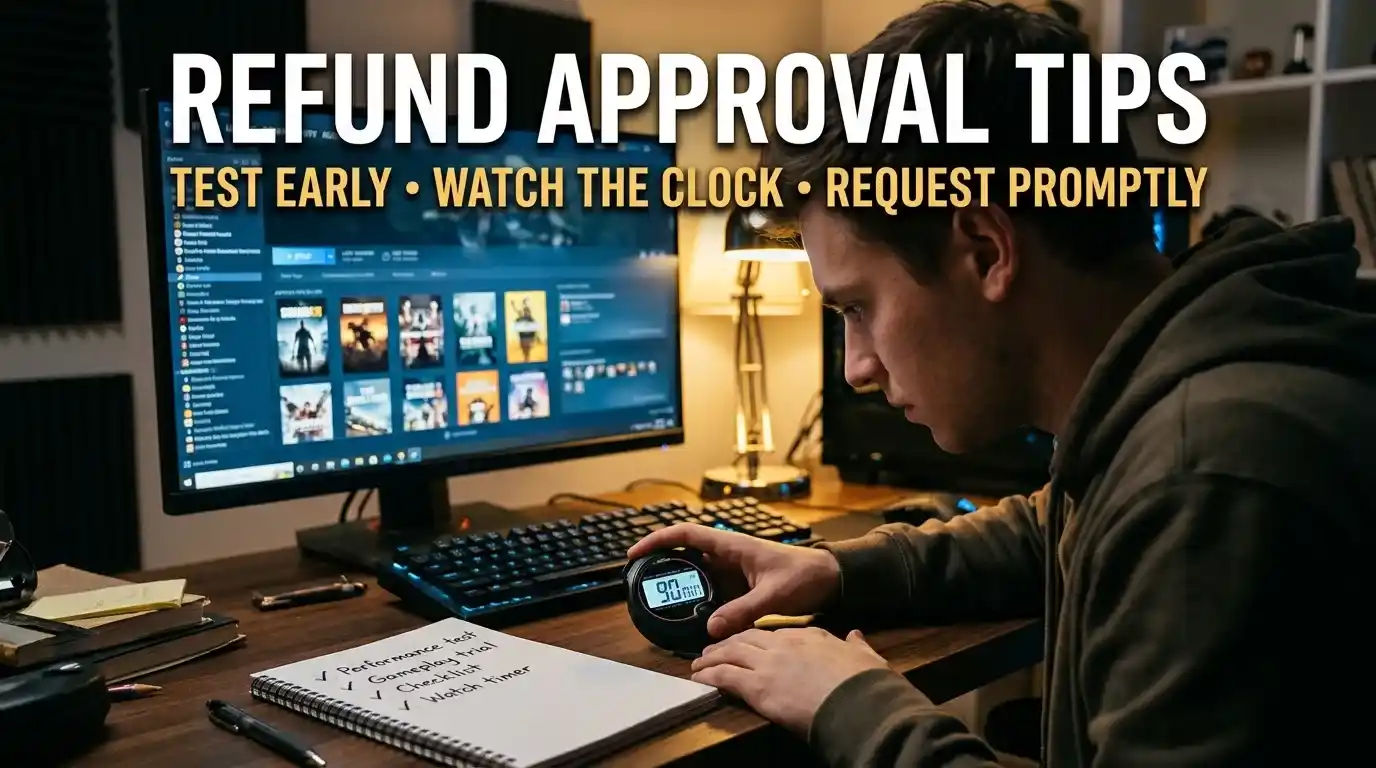
There’s no secret trick. But these habits make approval smoother:
- Test early. Launch the game right after buying and check performance in the first 20 minutes. If it stutters or crashes, stop and file the request.
- Watch the clock. Check your playtime before you start another session. If you’re at 90 minutes and unsure, quit.
- Request promptly. Don’t wait until day 13 when you already know you don’t want the game.
- Be accurate in your reason. Pick the dropdown option that fits, and add a short, factual note if there’s a technical problem.
- Don’t consume DLC or items you may want to refund. Using, modifying or transferring them can disqualify the request.
- Check the store page before buying. Non-refundable DLC and in-game items are flagged there, and Steam shows refund eligibility notices during checkout.
- Keep refunds for real regret. Valve targets abuse. Occasional refunds for genuine reasons are what the policy is built for.
- Send one request per purchase. Duplicate submissions add nothing. Wait for the outcome.
FAQs
How do I refund a Steam game?
Go to help.steampowered.com, sign in, open Purchases, select the game, choose the refund option, pick a refund method and reason, and submit. The game must be within 14 days of purchase with under two hours played to meet the standard rule.
What is the Steam refund policy?
Valve will refund nearly any Steam purchase for any reason. For games and software, the standard rule is a request within 14 days of purchase with less than two hours of playtime.
How long do I have to refund a Steam game?
You have 14 days from purchase. For pre-orders, the 14-day period begins on the release date.
How many hours can I play before a Steam refund is no longer standard?
Two hours. A game played for less than two hours meets the standard test. Beyond that, you can still ask, but approval is not guaranteed.
Can I get a refund after 14 days?
You can submit a request, and Valve says it will take a look even if you fall outside the standard rules. The reliable window is 14 days.
How long does a Steam refund take?
Valve says an approved refund is issued in full within a week of approval. The official page doesn’t give a set decision time.
Will I get my money back to my card or to Steam Wallet?
Either, depending on your choice and whether your payment method supports refunds. If it can’t, Steam credits your Steam Wallet.
Can I refund DLC on Steam?
Yes, within 14 days if the underlying game has been played under two hours since you bought the DLC and the DLC has not been consumed, modified or transferred. Some third-party DLC is marked non-refundable.
Can I refund in-game purchases?
In Valve-developed games, yes, within 48 hours if the item is unused. In other games, only if the developer opted in. Steam tells you at purchase.
Can I refund Steam Wallet funds?
Yes, within 14 days if you bought them on Steam and have not used any of the funds.
Can I refund a gift?
Unredeemed gifts can be refunded under the standard 14-day, two-hour rule. Redeemed gifts can be refunded under the same conditions if the recipient starts the request. The money returns to the original purchaser.
Does a VAC ban affect refunds?
Yes. If you’ve been banned by VAC on a game, you lose the right to refund that game.
Can I refund a game I bought from another website?
No. Valve can’t refund keys or Steam Wallet cards purchased outside Steam. Contact the seller.
Can Steam stop me from requesting refunds?
Yes. Valve says it may stop offering refunds to accounts it believes are abusing the system.
Conclusion
Steam’s refund system is one of the friendliest in digital retail, but it rewards people who act quickly and read the details. Remember the core rule: request within 14 days, stay under two hours of play, and file through Steam Support. Then check the exceptions for DLC, in-game items, bundles, gifts, wallet funds and subscriptions. If you fall outside the window, you can still ask, and if your payment method can’t take a refund, the money goes to your Steam Wallet.
Policies change, so treat Valve’s official refund page as the final word. We’ll update this guide as soon as that page does.
Ready to request a refund? Head to help.steampowered.com, open Purchases, and file your request before the clock runs out.
Want more Steam help? Explore the rest of our Guides for tips on getting more from your library, and subscribe to the Velogamer newsletter for new guides as they publish.